There are four access types on the platform: Administrator, Moderator, Observer and Participant. Each profile has specific permissions and responsibilities within the community. Below, you will learn more about the Moderator role.
Contents
Moderator
The Moderator follows the community day to day: managing assignments, interacting with participants in the forum and analyzing answers. The Moderator has access to most platform tools, with a few restrictions compared to the Administrator.
Moderator accounts are created by a community Administrator. See how in Add and Manage Operators and learn more about the first access for Operators.
The Administrator can choose which pages the Moderator can access in Settings > Privacy. Because of this, some menus may not be visible to you.
Moderator menu
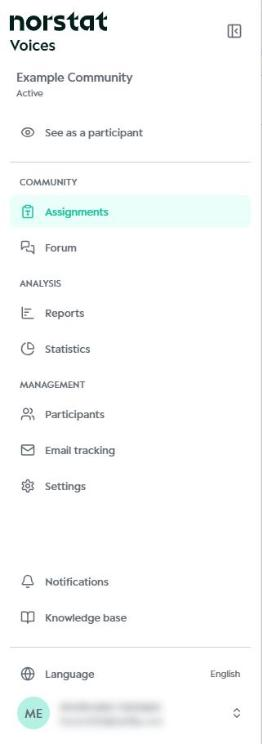
In the side menu, the Moderator finds Assignments and Forum (Community), Reports and Statistics (Analysis), and Participants and Settings (Management). The “See as a participant” option shows the community the way participants see it. To see each menu name, click the Expand menu icon at the top of the side bar.
Settings
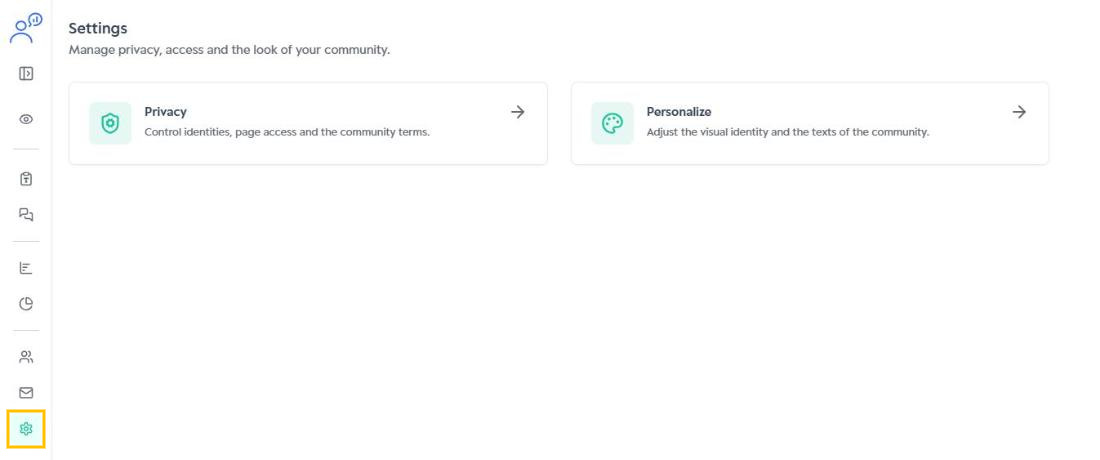
In Settings, the Moderator has access to two sections:
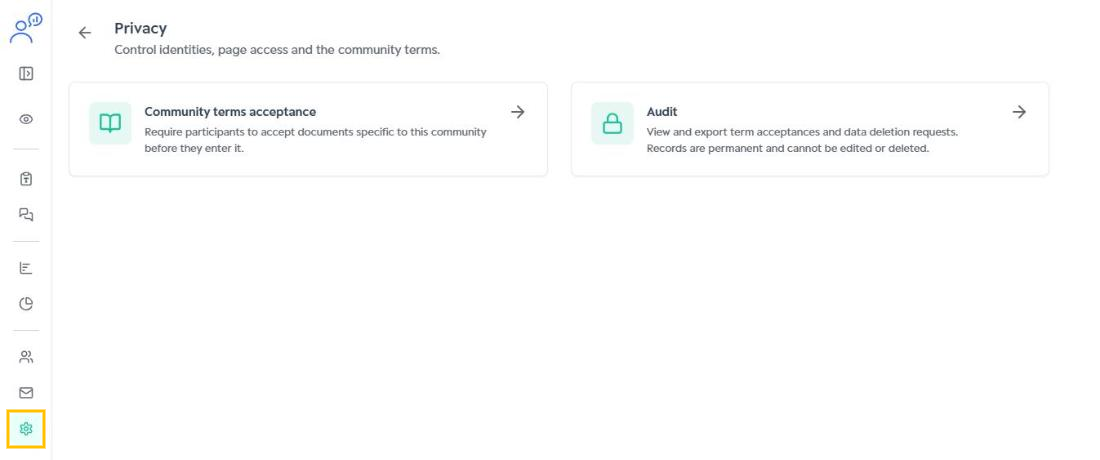
- Privacy: require acceptance of the community terms and check the audit log (term acceptances and data deletion requests).
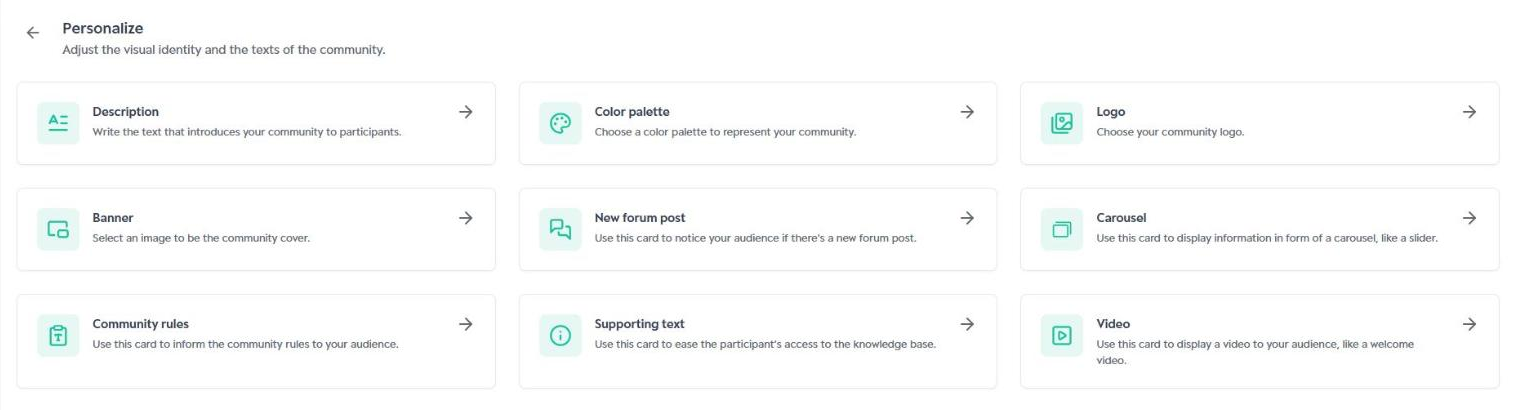
- Personalize: adjust the community’s visual identity and texts, such as description, color palette, logo, banner and home page cards.
The Community (segmentation and logs) and Moderation (manage operators) sections are available to Administrators only.
Participants
In Participants, the Moderator manages participants in the Registered, Invited, Profiles and Notifications tabs. The actions menu (⋮) of each participant gives access to actions on their account.
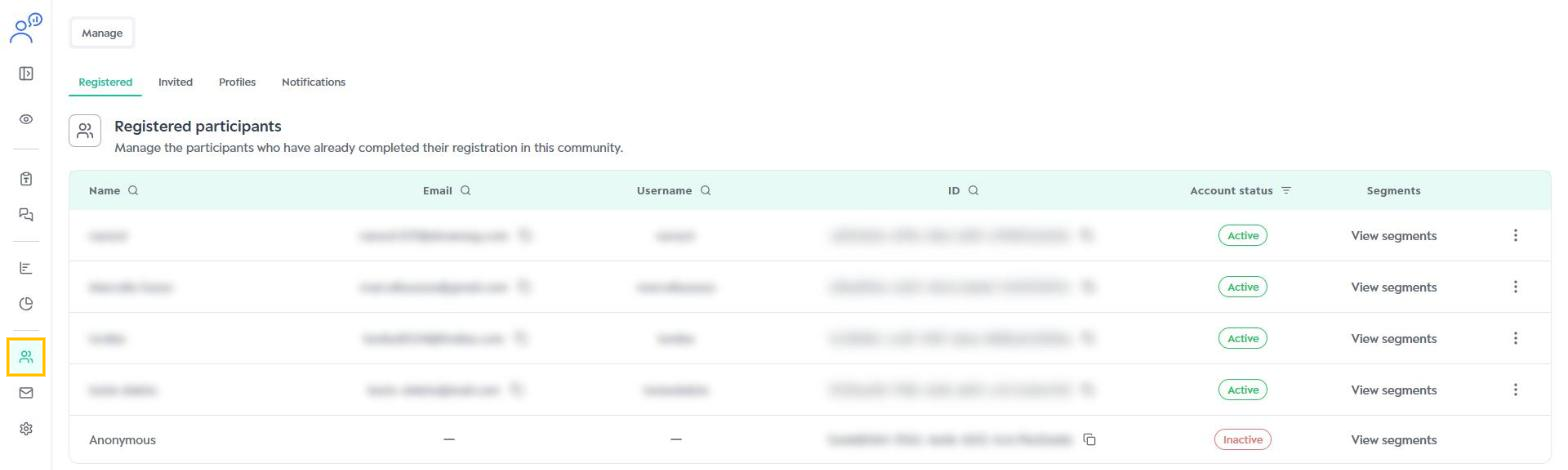
Adding new participants (batch import and registration links) is done by the Administrator.
Assignments
In Assignments, the Moderator can create new assignments with the “+ Assignment” button, manage existing ones with “Manage” and filter the list by segment, order or name.

Forum
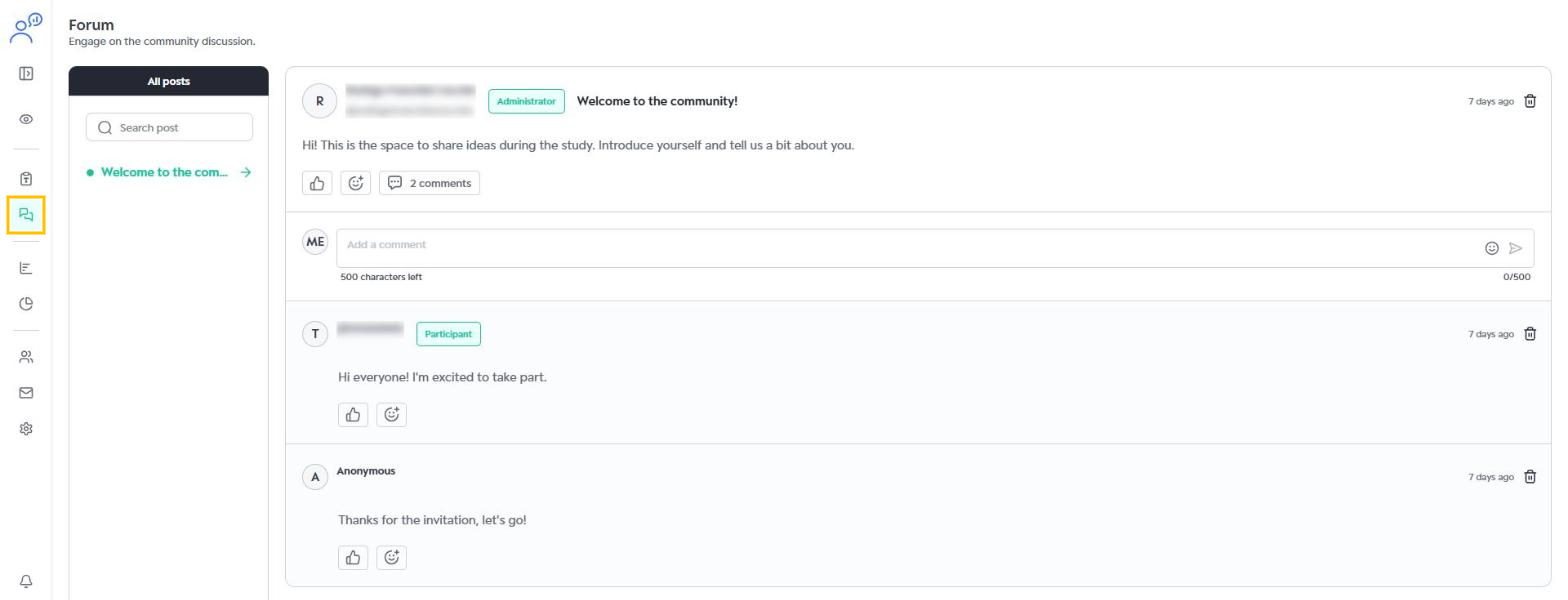
In the Forum, the Moderator follows the community posts and can comment, react and delete posts and comments. New posts are created by the Administrator.
Reports
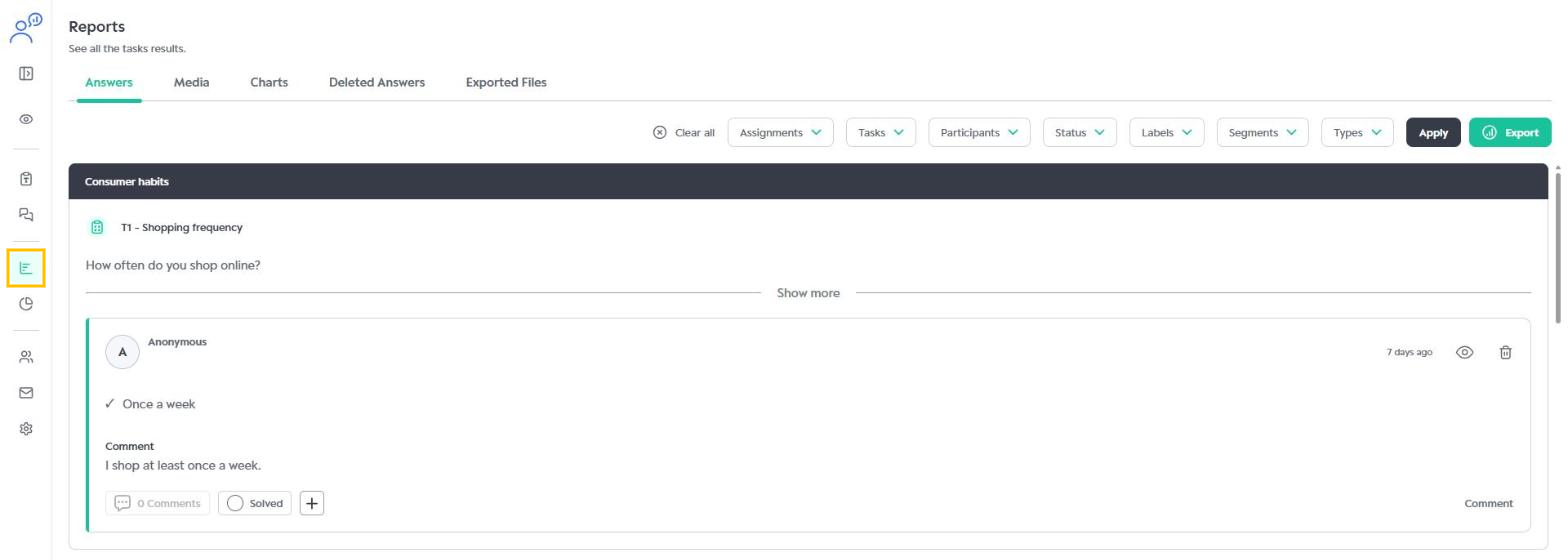
In Reports, the Moderator analyzes participant answers in the Answers, Media and Charts tabs, checks Deleted Answers and Exported Files, and can export results with the “Export” button. It is also possible to comment on answers, mark them as solved and delete them.
Statistics
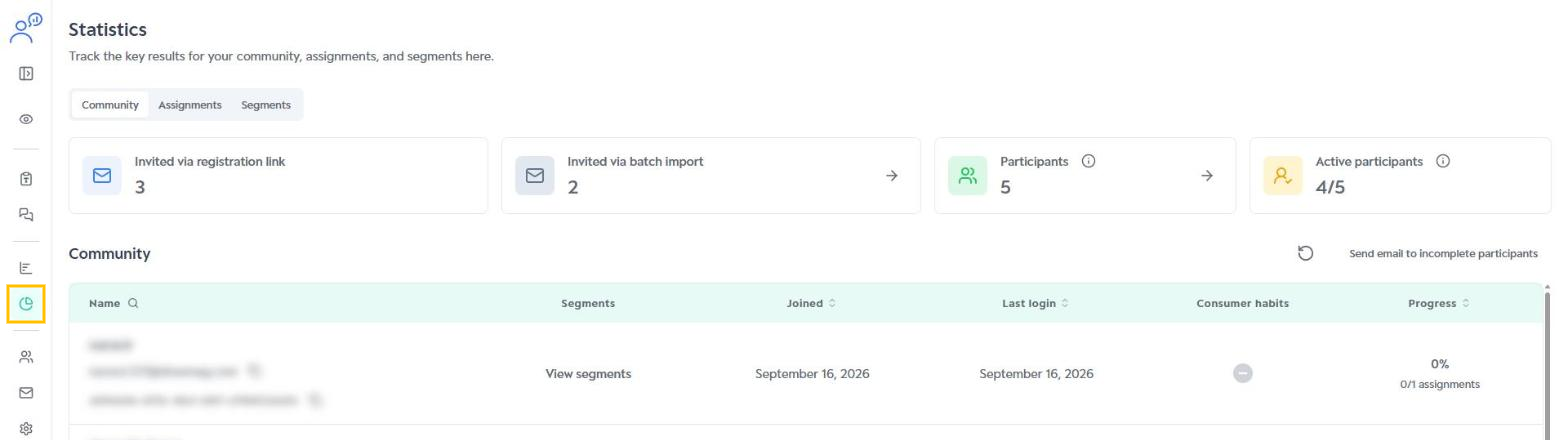
In Statistics, the Moderator tracks the key numbers for the community, assignments and segments, and can use “Send email to incomplete participants” to remind those who have not finished their assignments.
Was this article helpful?
That’s Great!
Thank you for your feedback
Sorry! We couldn't be helpful
Thank you for your feedback
Feedback sent
We appreciate your effort and will try to fix the article