There are four access types on the platform: Administrator, Moderator, Observer and Participant. Each profile has specific permissions and responsibilities within the community. Below, you will learn more about the Participant role.
Contents
Participant
Participants are the respondents of an online community study. They share opinions, perceptions and experiences through assignments and the forum, generating the study’s insights.
See how to register in First Access - Participants.
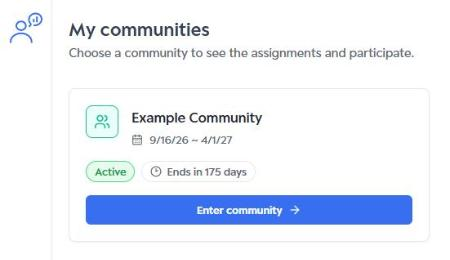
When logging in, the participant sees the “My communities” page, with the communities they belong to. Click “Enter community” to access one of them.
Participant menu
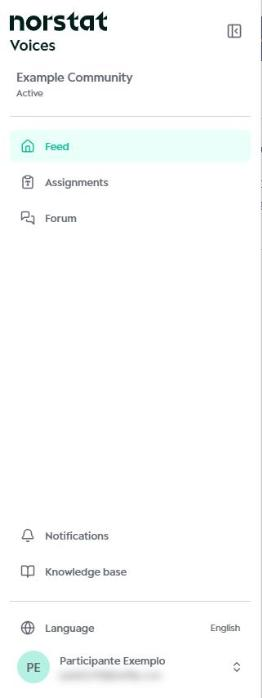
In the side menu, the participant finds Feed, Assignments and Forum, as well as Notifications, Knowledge base, Language and the profile menu. To see each menu name, click the Expand menu icon at the top of the side bar.
Feed
The Feed is the community home page. There, the participant finds:
- the community welcome message;
- the next assignment, with its finish date and the “See now” link;
- Your progress, with the status of completed assignments and tasks;
- the “Next assignment” button at the top, which goes straight to the next pending assignment, and the “Refresh” button.
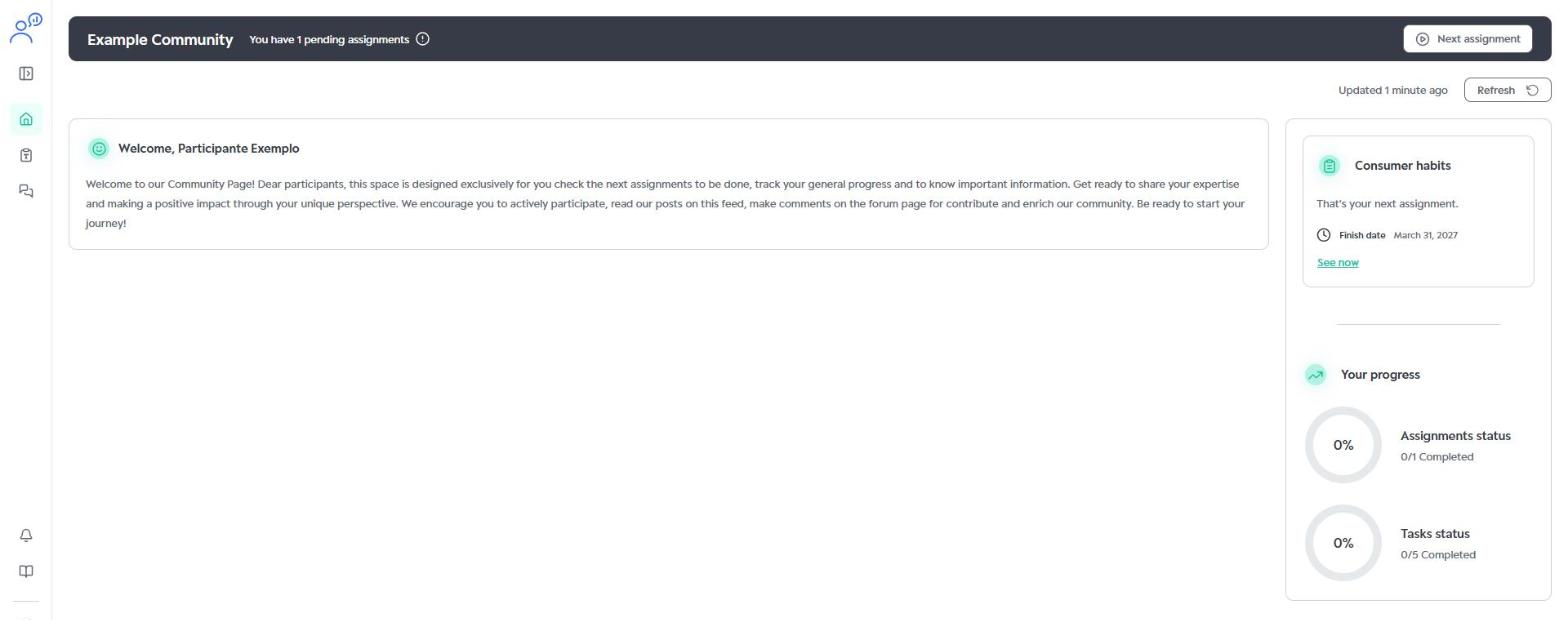
Depending on the community setup, the Feed may also show other cards, such as an information carousel, community rules, video, support text and new forum post notices.
Assignments
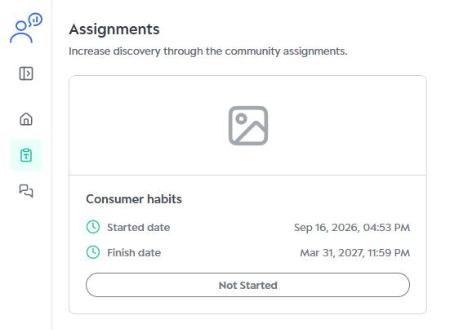
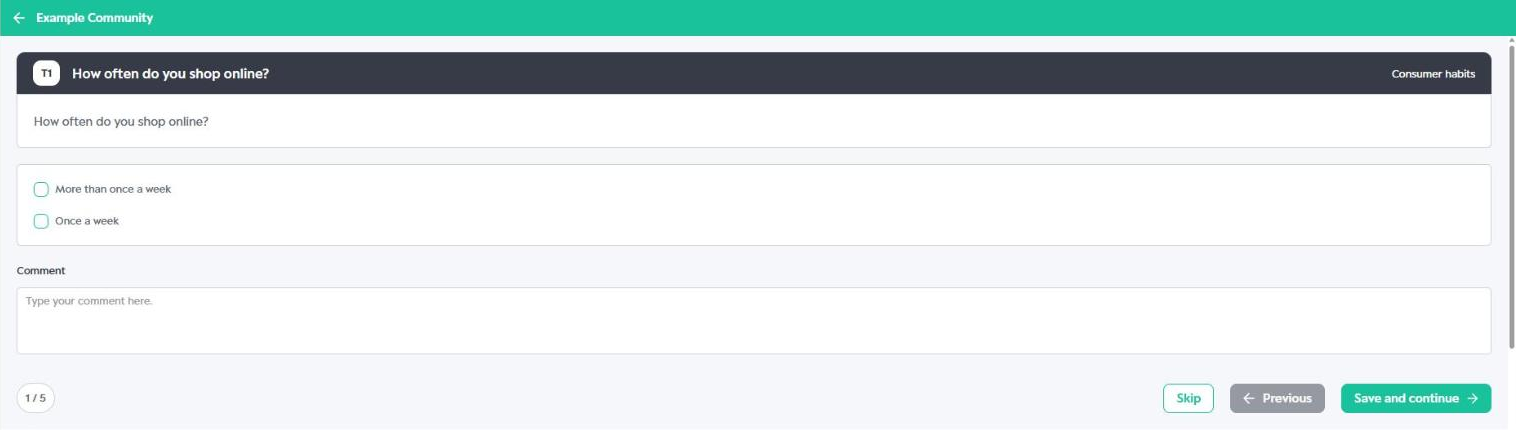
In Assignments, the participant sees all available assignments, with their start and finish dates and status (for example, “Not Started”). Click an assignment to start answering.
Each task shows the question and the answer options. You can also add a comment. Use “Save and continue” to move forward, “Previous” to go back or “Skip” to leave the task for later. The counter in the bottom-left corner shows which task you are on.
Forum
In the Forum, the participant follows community posts and joins the discussions by commenting on the posts available to them. Use the search to find a specific post.
Account and notifications
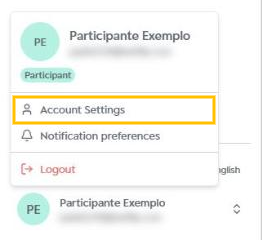
From the profile menu in the bottom-left corner, the participant can open Account Settings, Notification preferences and Logout. Learn more in Account Settings.
Was this article helpful?
That’s Great!
Thank you for your feedback
Sorry! We couldn't be helpful
Thank you for your feedback
Feedback sent
We appreciate your effort and will try to fix the article