The Account Settings menu allows the user to change their name, profile photo, reset their password, and add or update their WhatsApp number.
ÍNDICE
To access this menu, click on the upper-right corner of the screen, near your profile photo, and select the option “Account Settings.”

Please note: the registration e-mail address cannot be changed!Atenção: o e-mail de cadastro não poderá ser alterado!
It is recommended that you change your name and password only when necessary or if instructed by the support team.

Please remember that your password must contain:
At least 8 characters
At least 1 uppercase letter
At least 1 lowercase letter
At least 1 special character (*&%@!)

After making any changes, click the “Save” button to confirm.
CHANGE PROFILE PHOTO
To change your profile photo:
1. Click on your current photo located in the upper-right corner.

2. Select the desired image.
3. Use the mouse scroll button to adjust the image proportion.

4. Click “Confirm” to validate the selection.
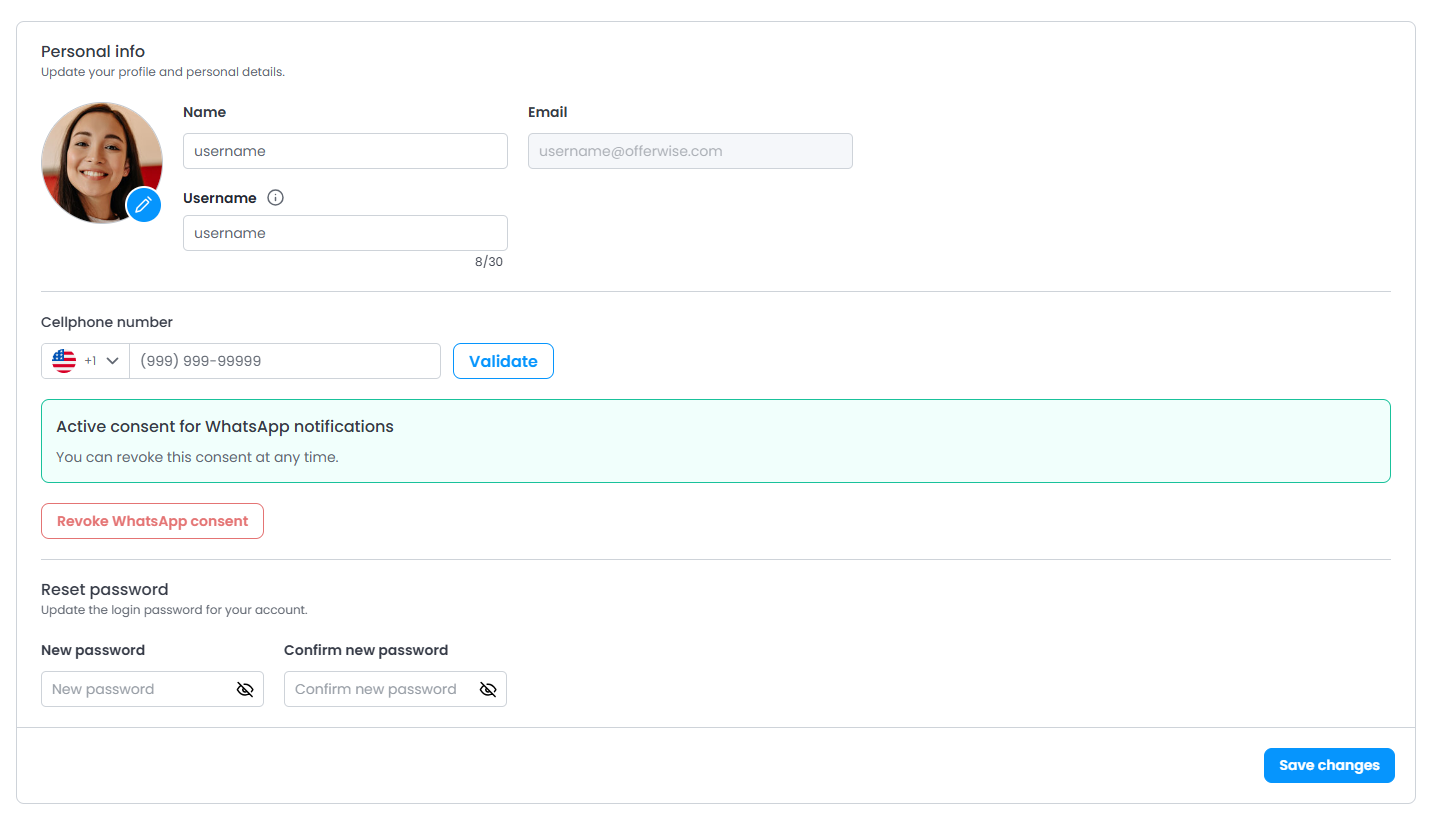
You must wait for the image to fully upload before clicking “Save” to complete the update.
CHANGE MOBILE NUMBER
To change or register a new mobile number:
1. Select the cuntry corresponding to the number.

2. Enter your area code + phone number.
3. Click the “Validate” button.
The system will automatically send a verification code via WhatsApp to the provided number.
4. Enter the code received in the indicated field.
After confirmation, the number will be validated and linked to your account.
ENABLE WHATSAPP NOTIFICATIONS
After validating your number:
1. Select the option “I agree to receive WhatsApp notifications.”

2. Click “Save” to confirm.

Done. WhatsApp notifications will now be enabled.
DISABLE WHATSAPP NOTIFICATIONS
To disable notifications:
1. Locate the option “Revoke WhatsApp Consent.”

2. Click the option and then click “Save.”

After this action, WhatsApp notifications will be disabled.
Was this article helpful?
That’s Great!
Thank you for your feedback
Sorry! We couldn't be helpful
Thank you for your feedback
Feedback sent
We appreciate your effort and will try to fix the article