There are four access types on the platform: Administrator, Moderator, Observer and Participant. Each profile has specific permissions and responsibilities within the community. Below, you will better understand the Administrator's role.
INDEX
Administrator
The Administrator has the highest level of access within the community. This means they can configure, manage and monitor all the features available on the platform.
Administrator accounts are created by the Norstat Voices Support team or by another Administrator of the community. Once the account is created, the user can access the platform for the first time using the credentials sent by email. Learn more about the Operators' first access.
The Administrator's main responsibilities include managing the community, setting up operators and participants, organizing assignments and monitoring the results of the research. The Administrator is also responsible for defining segmentations and participant organization rules, when necessary, to help target assignments and analyses.
It is important that this type of access is granted responsibly, preferably to users who have already taken the training offered by the Norstat Voices Support team, ensuring the correct use of the platform features.
Administrator tools
The Administrator has access to all the platform management menus, available in the left sidebar. To see the name of each menu, click the Expand menu icon at the top of the sidebar.
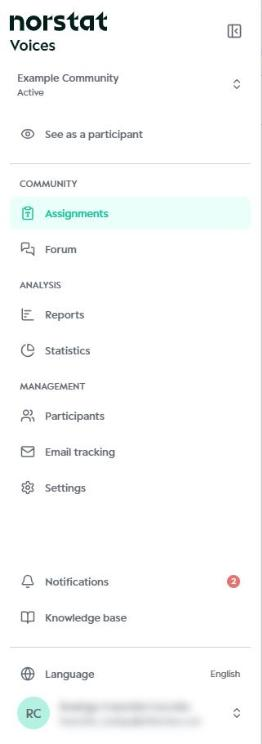
In addition to the menus detailed below, the sidebar also offers the See as a participant, Statistics, Email tracking, Notifications and Knowledge base options, as well as the language selector and access to your account settings.
Settings
The Settings menu (gear icon) is the main configuration area of the community.
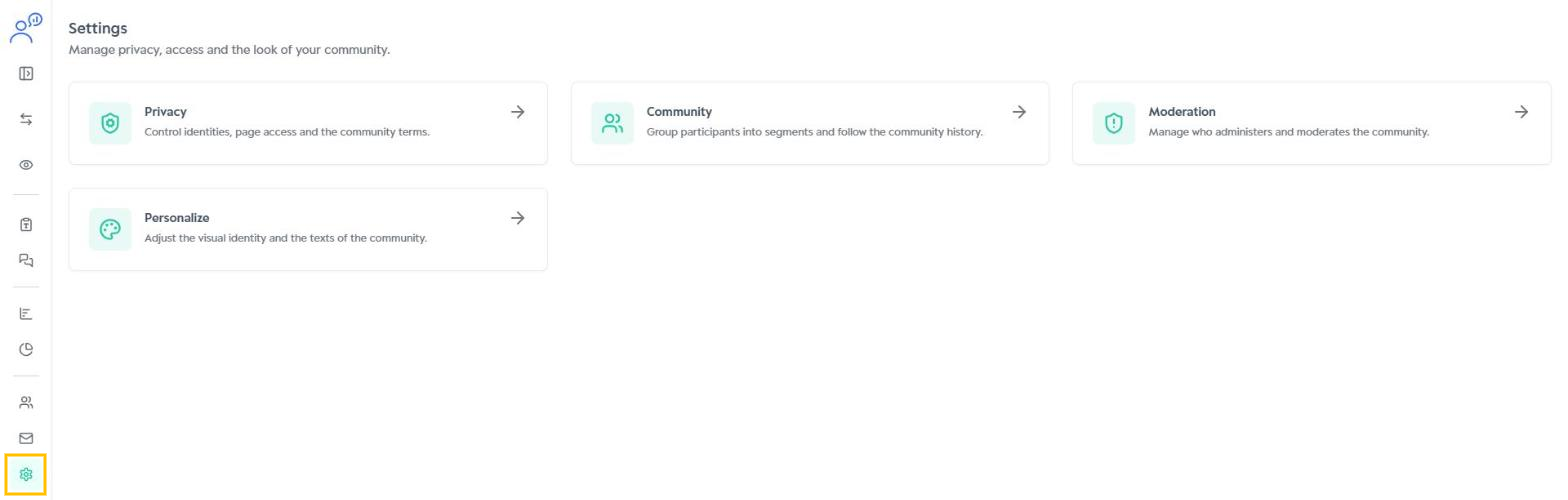
In this menu, the Administrator can access the following sections:
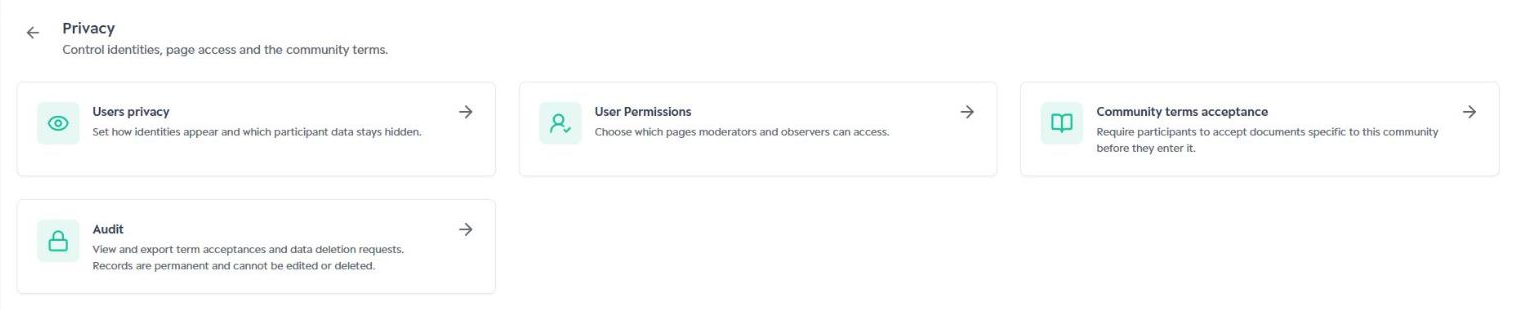
- Privacy: lets you define how user identities appear, choose which pages moderators and observers can access, require acceptance of the community terms and consult the audit records.
- Community: lets you create segmentations to group participants and follow the logs (history) of actions taken in the community.

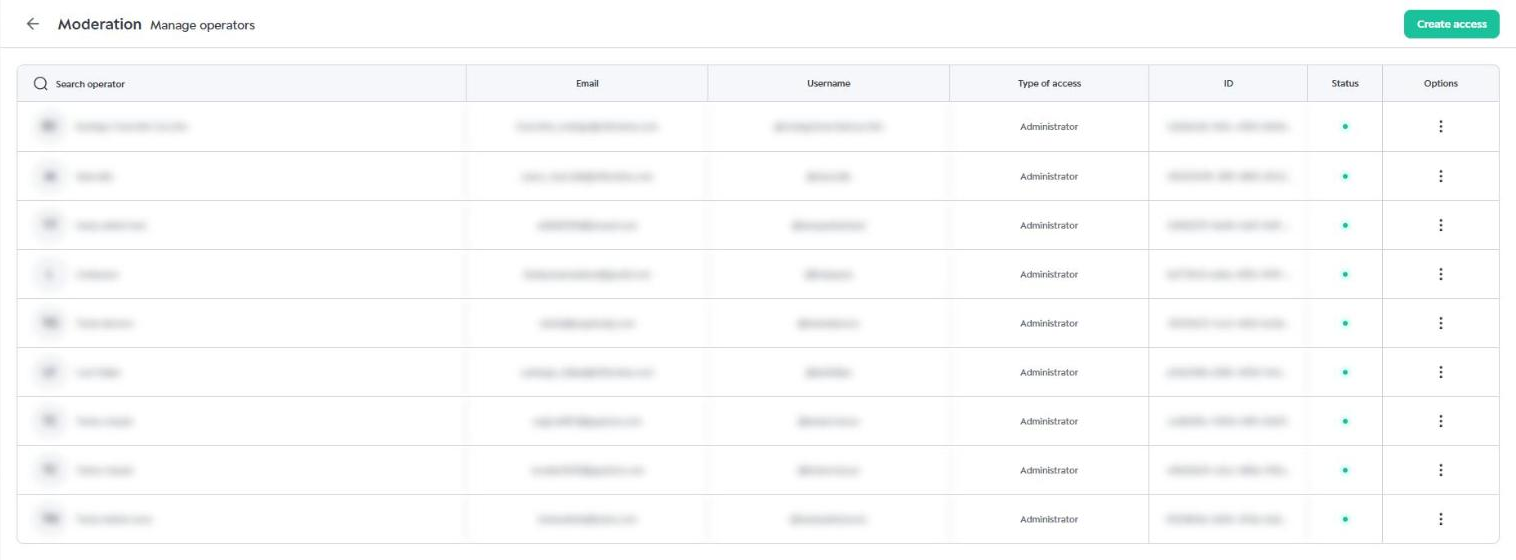
- Moderation: lets you add and manage operators of the platform, such as Administrators, Moderators and Observers.
- Personalize: lets you customize the visual identity and texts of the community, such as the description, color palette, logo, banner and home page cards.
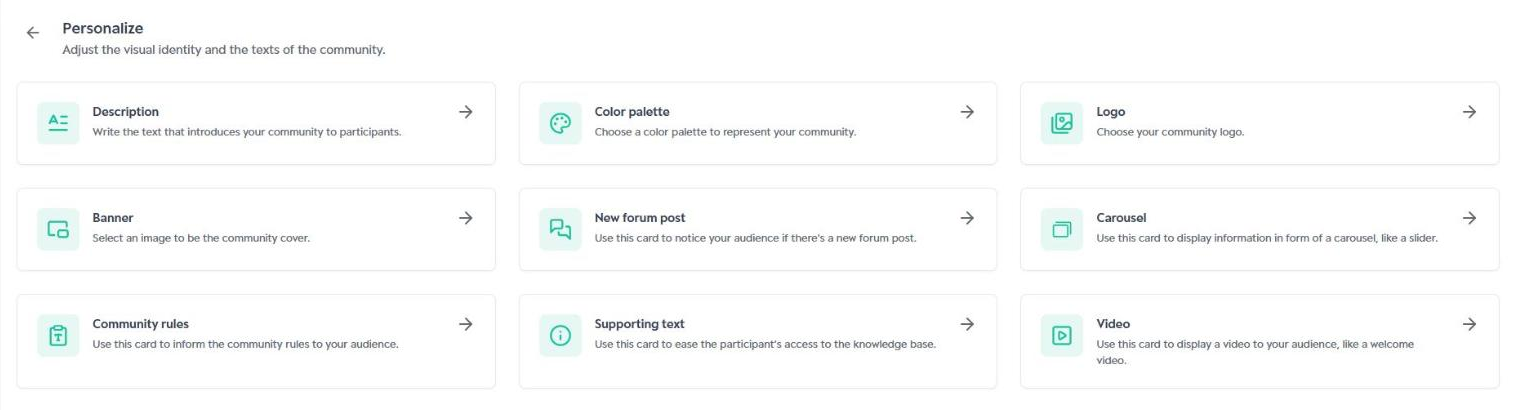
Each of these features has a specific guide with detailed usage instructions.
Participants
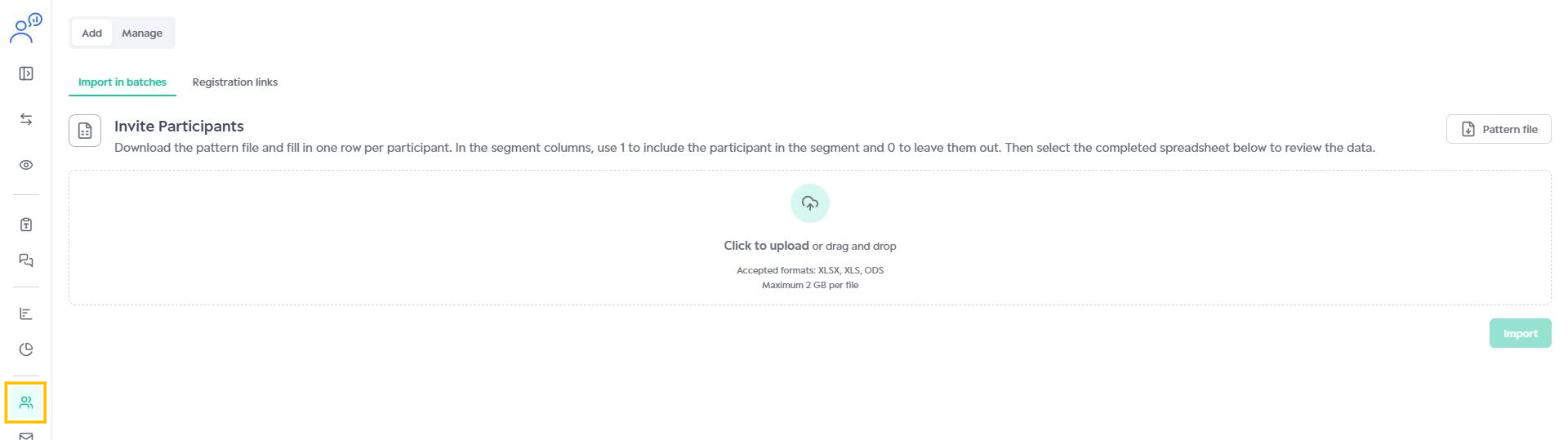
In the Participants menu, the Administrator can add and manage the participants of the study, either by importing them in batches or through registration links.
Assignments
In the Assignments menu, the Administrator can view all the existing assignments in the community and manage the assignments that are part of the study. Through this menu, you can follow the created assignments, check their settings and access their general information.

For detailed instructions on how to create and manage assignments, see the article on creating assignments.
Forum
In the Forum menu, the Administrator can follow the interactions within the community. This area lets you publish content, follow discussions and interact with participants through comments and reactions.
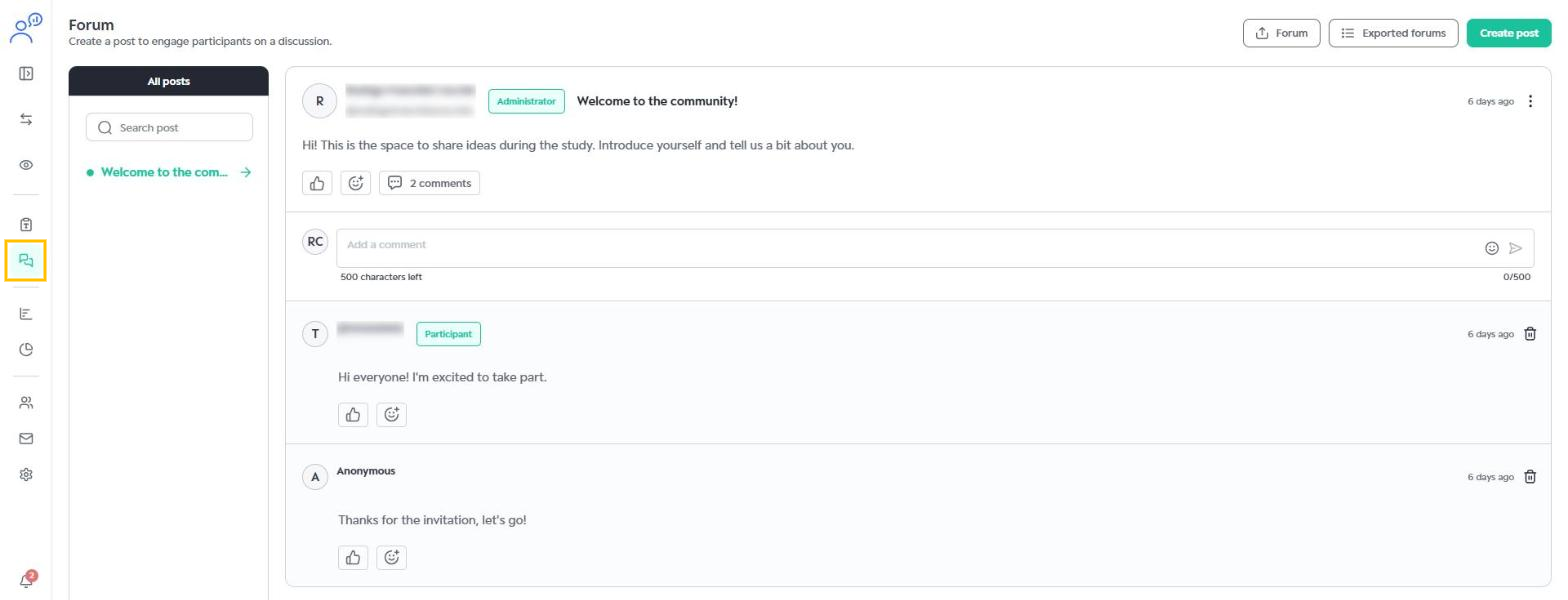
For more details on how to use this feature, see the Discussion Forum guide.
Reports
The Reports menu lets the Administrator follow the results of the assignments carried out in the community. In the Answers, Media, Charts, Deleted Answers and Exported Files tabs, you can view participants' answers, uploaded media and charts, and use filters to organize the information displayed.
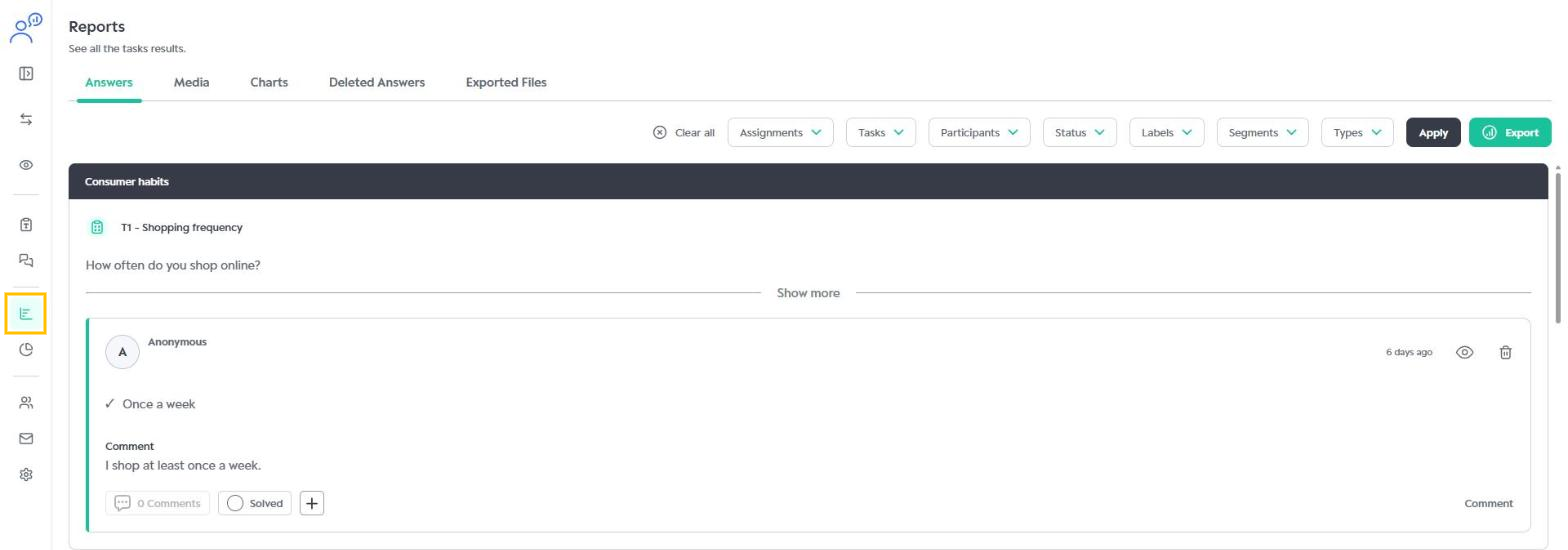
You can also export assignment data for external analysis: apply the desired filters and click Export.

For more information on how to use reports and export data, see the specific article on data export and results analysis.
Was this article helpful?
That’s Great!
Thank you for your feedback
Sorry! We couldn't be helpful
Thank you for your feedback
Feedback sent
We appreciate your effort and will try to fix the article