Participants can join a Norstat Voices community in two ways: through the registration link shared by the study team or through an email invitation sent by the Administrator. In both cases, registration follows the same steps.
Contents
- Registration link
- 1. Enter your email
- 2. Create your name and password
- 3. Accept the platform terms
- 4. Add your WhatsApp
- 5. Access the community
Registration link
The registration link is generated by the Administrator in Participants > Add > Registration links, using the “Generate link” button. Then just copy the link and share it with participants.

If you received an email invitation, click the button in the invitation to open the registration page and follow the same steps below.
1. Enter your email
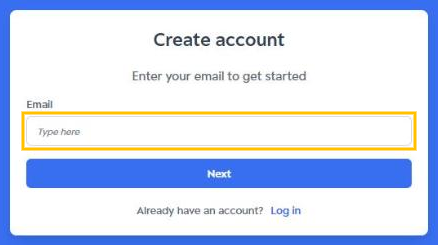
When you open the link, the “Create account” screen is displayed. Enter your email and click “Next”.
2. Create your name and password
Fill in your Name, create a Password, confirm it in Confirm password and click “Next”. Your password must have at least 8 characters, at least 1 uppercase letter, 1 lowercase letter and 1 special character (for example: @, # or !).
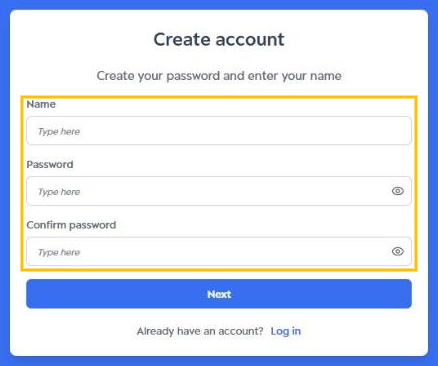
Follow the study guidelines for your name. If there are no specific guidelines, enter your first and last name.
3. Accept the platform terms
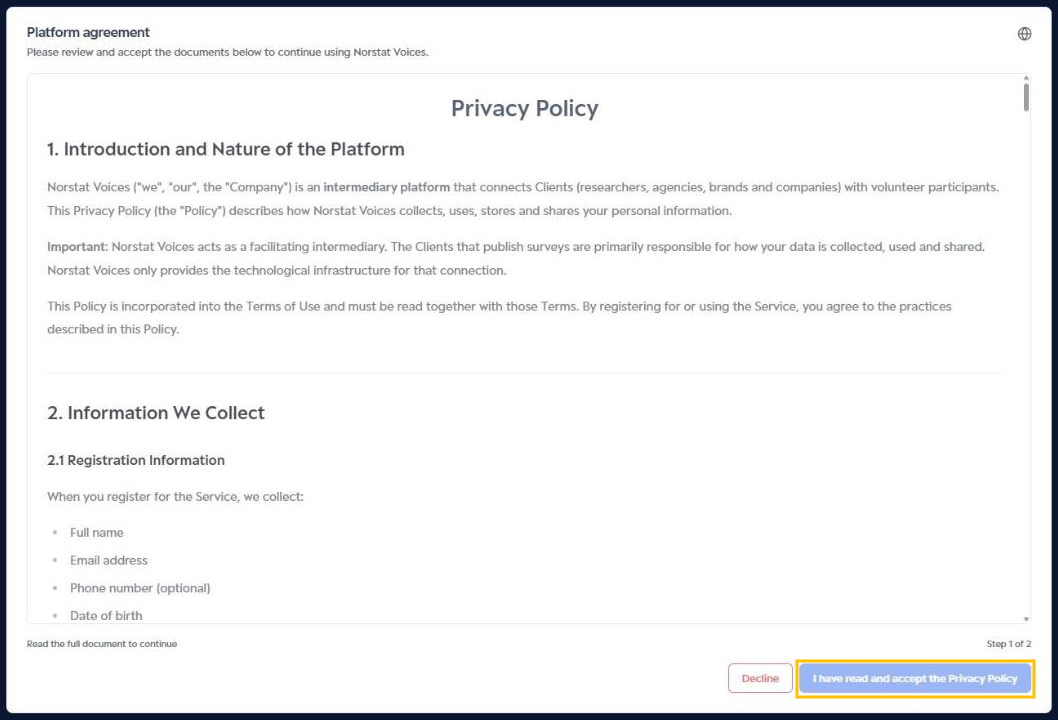
In the “Platform agreement” window, read the Privacy Policy to the end and click “I have read and accept the Privacy Policy”. The button is enabled only after the full document has been read.
Next, read the Terms of use and click “I have read and accept the Terms of use”. Use “Back” to return to the previous document. The globe icon in the top-right corner lets you change the language of the documents.
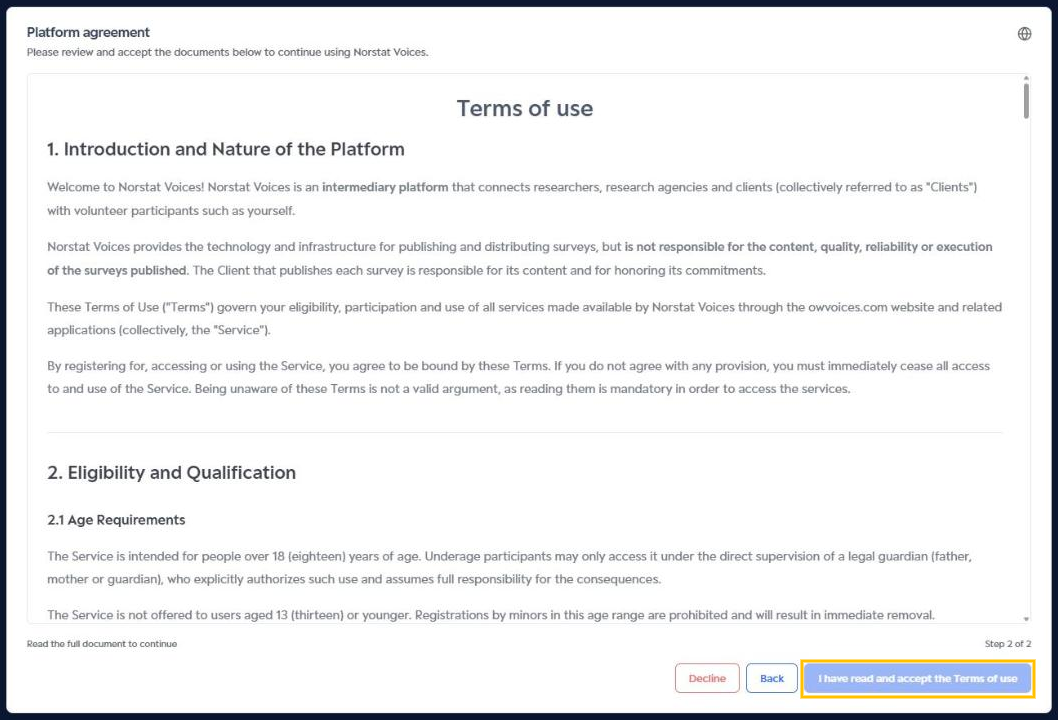
If you click “Decline”, registration is not completed.
4. Add your WhatsApp
To receive alerts about new activities and updates about your participation, select the country code, enter your cellphone number and click “Validate”. If you prefer not to provide your number now, check “I prefer not to provide my WhatsApp number now”. Then click “Next”.
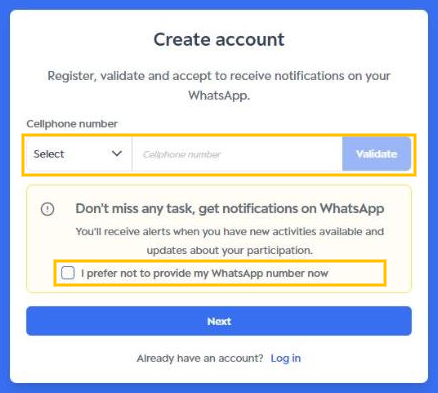
You can add or change your number later in Account Settings.
5. Access the community
Done! Your registration is complete. On the “My communities” page, click “Enter community” to start participating.
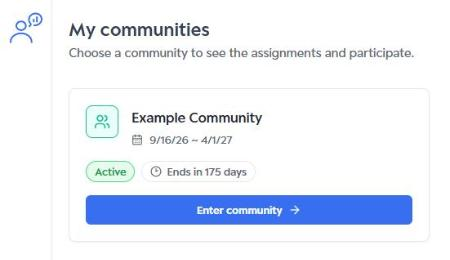
To learn about the features available to you, see Access types - Participant. Next time, use your email and password on the login page. Learn more in Login and Logout.
Was this article helpful?
That’s Great!
Thank you for your feedback
Sorry! We couldn't be helpful
Thank you for your feedback
Feedback sent
We appreciate your effort and will try to fix the article