Logic and conditions apply to an activity when a response changes the flow or when not all participants should see everything.
| Scenarios where Logic and Conditions apply | Scenarios where Logic and Conditions do not apply |
| Not all participants need to see everything | There is no need to create changes in the flow |
| A response changes the flow | It can be resolved with segmentation |
Practical Application
We will cover a complete scenario in which logic and conditions apply to an activity/community and how to use them.
Scenario: a brand that wants to evaluate a new product design.
For this, we created the community: Concept Study – New Design.
Within the community, the activity was created: Initial Impressions Design.

IMPORTANT: To apply logic and conditions in an activity, enable the Sequence tasks and Logic and conditions buttons (indicated by the red arrow above); otherwise, it will not be possible to apply them.
The activity was created and its tasks were defined, as shown below:
1. First impression of the packaging
2. What stood out most positively? (skip logic)
3. What could have been improved? (skip logic
4. What did you dislike? (skip logic)
5. Purchase intention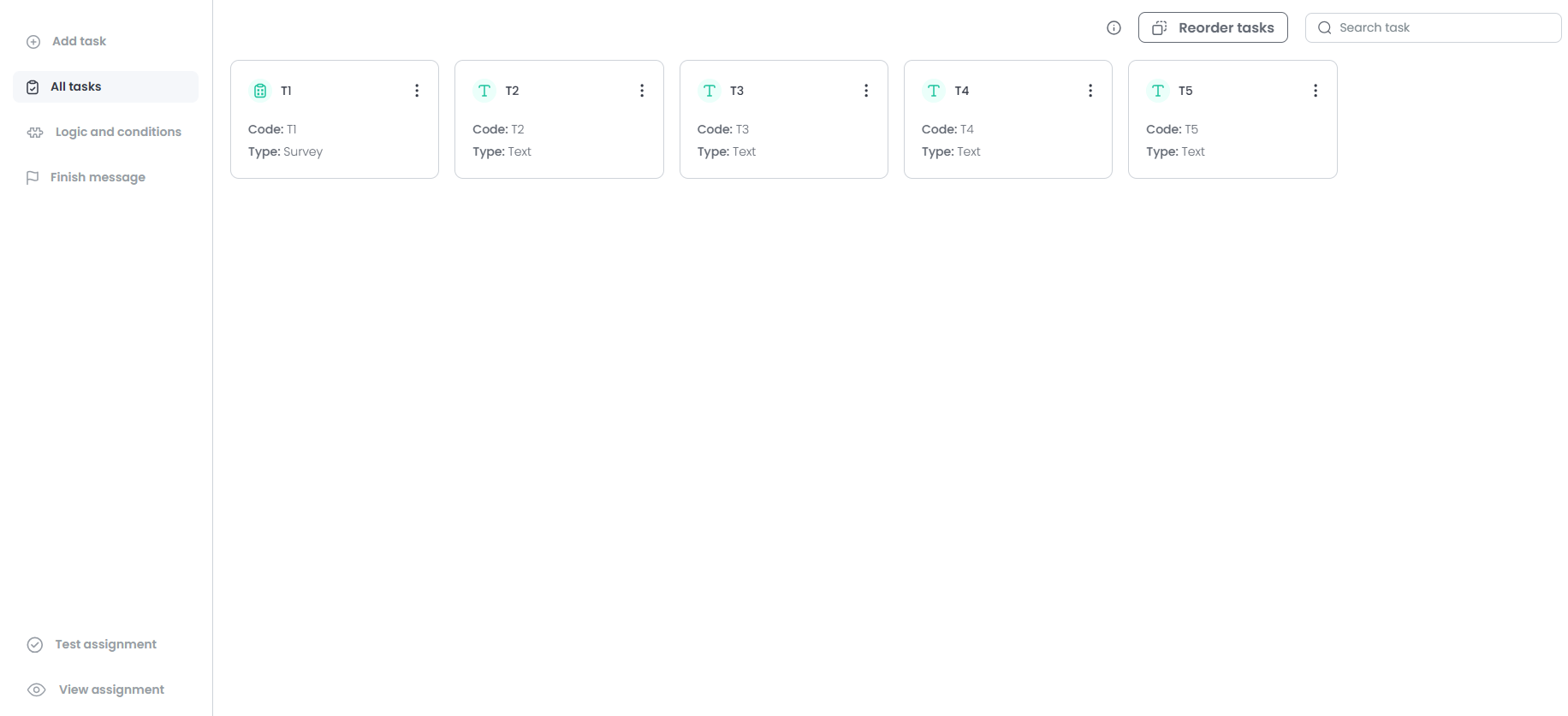
Logic and Conditions
1. After defining the tasks in the activity, creating the logic is simple: go to the Logic and Conditions section in the left sidebar, below All Tasks.
2. On the Logic and Conditions page, click the + Logic button to create one.
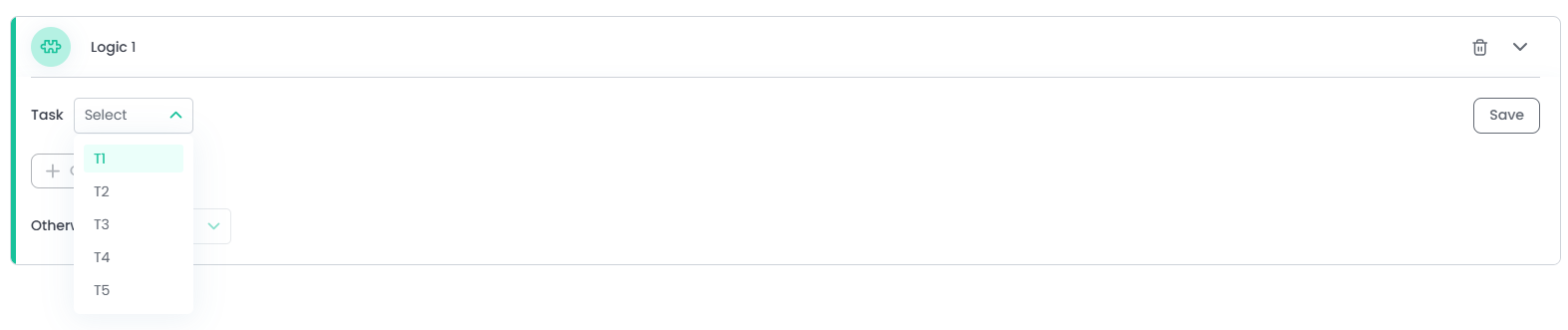
3. Then select the task to which the skip logic will be applied. For this example, T1 (Task 1) was selected.

5. Apply the logic to the activity: in this scenario of evaluating the new design, if the customer has a negative impression of the product, they will proceed to T4 (Task 4); if it is neutral, they will proceed to T3 (Task 3); if it is positive, they will continue normally to T2. A visual example can be seen below.
Applied logic: If the participant answers T1 with the negative option, they go to T4;
If the participant answers T1 with the neutral option, they go to T3;
If none of the options above are selected, the positive option, they go to T2 (next).
6. Click the Save button to apply the logic to the activity.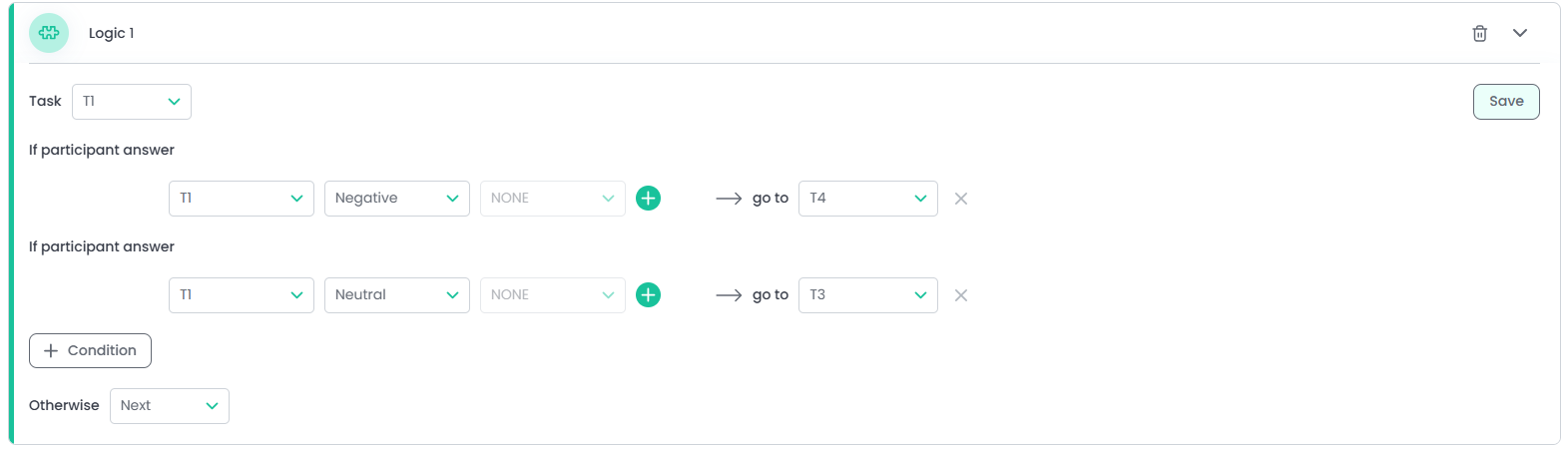
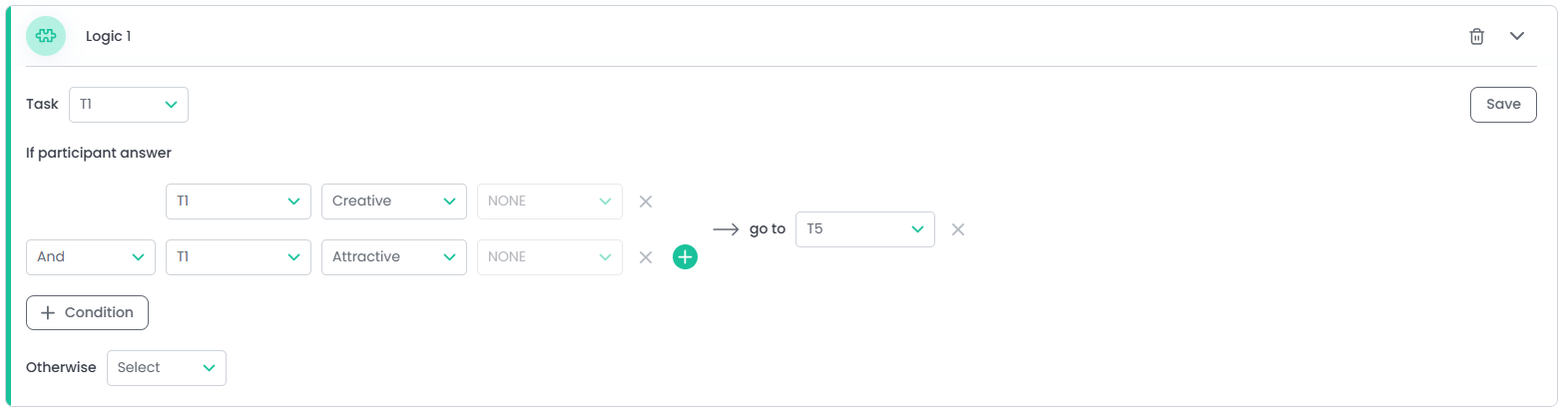
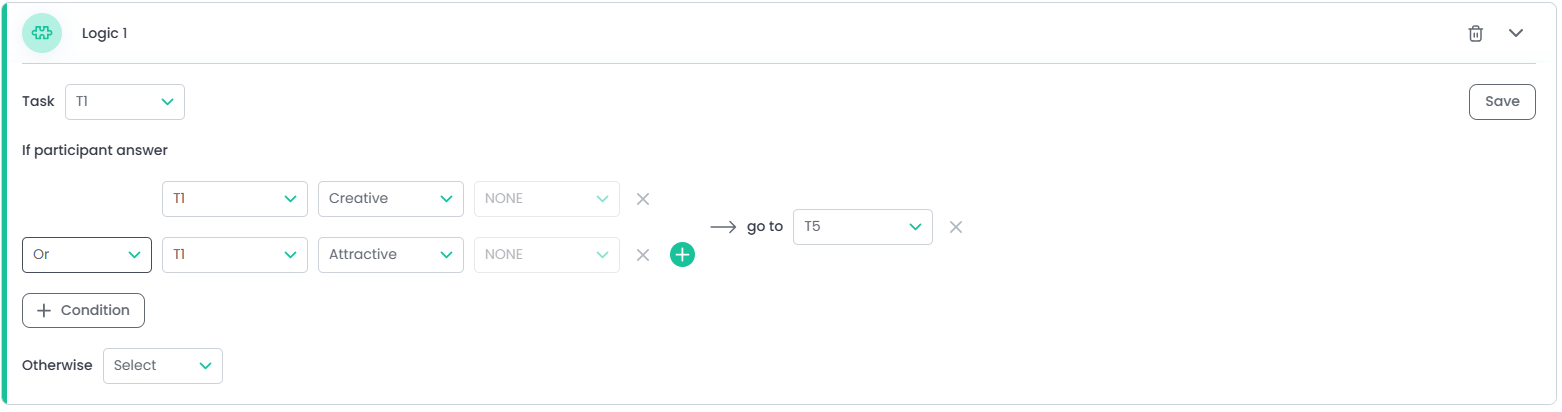
Add option
When clicking the + inside the circle, as shown below: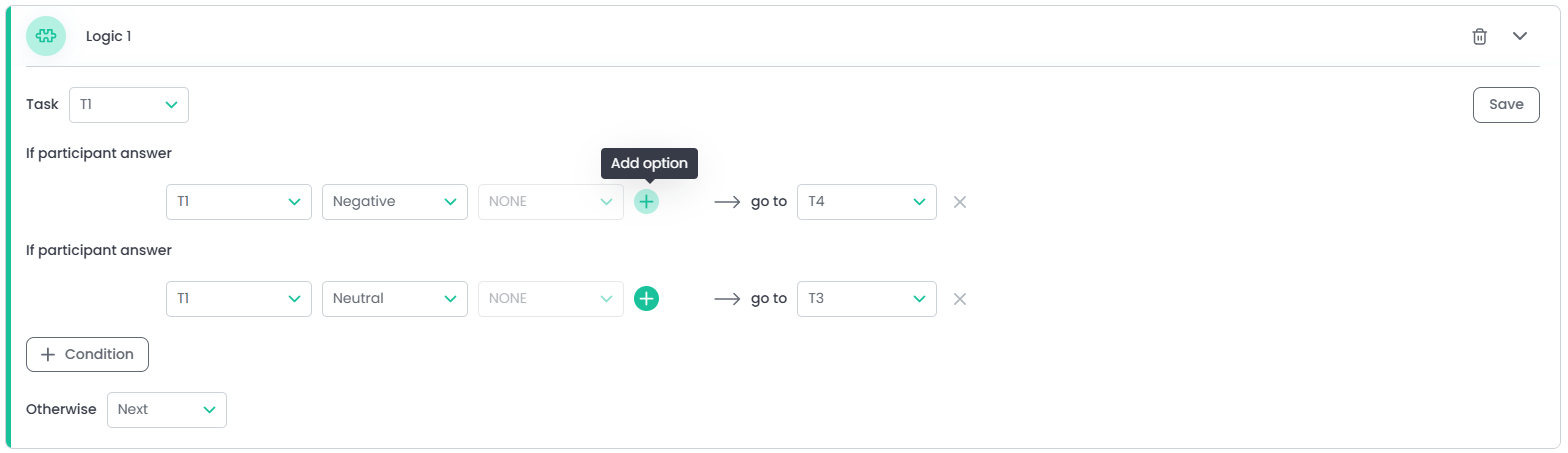

Was this article helpful?
That’s Great!
Thank you for your feedback
Sorry! We couldn't be helpful
Thank you for your feedback
Feedback sent
We appreciate your effort and will try to fix the article