Video Evaluation is a type of task that presents the participant with a video to be evaluated on a scale and marked with reaction labels.
Comments per label can be activated and applied along with the minimum/maximum number of responses.
Although there are many different use cases, video evaluation is commonly used to evaluate commercials, advertisements and website design.
CONTENTS
- Setting up
- How will participants view this type of task?
- Charts and Tables
- How will I visualize this type of task in the database?
Set up
To create any task, you must have Administrator or Moderator access. Using one of these accesses you must go to the activity's gear menu and click on “Edit Tasks”. If you haven't yet created your first activity, you should do so before proceeding. Learn more about creating an activity here.
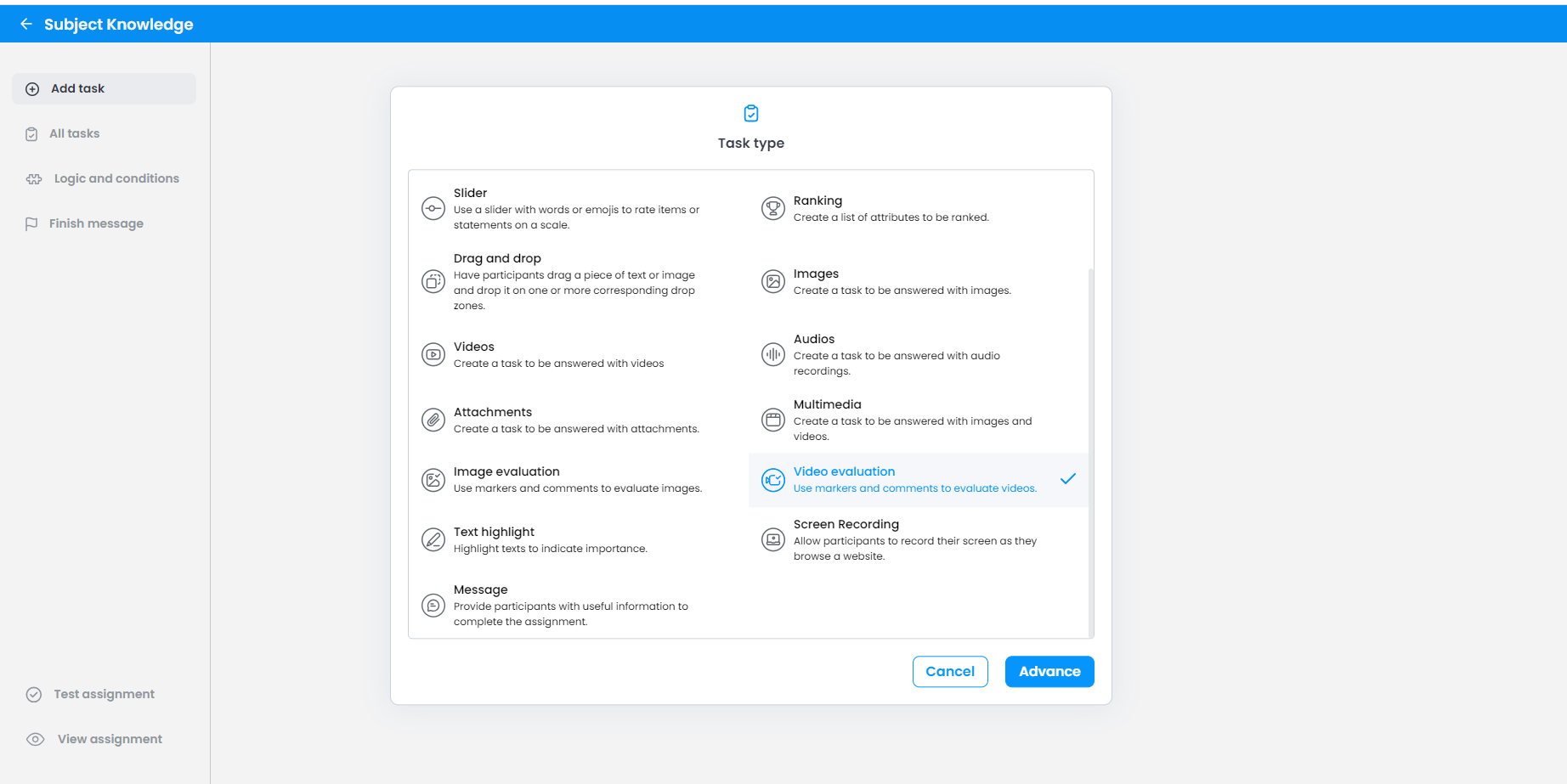
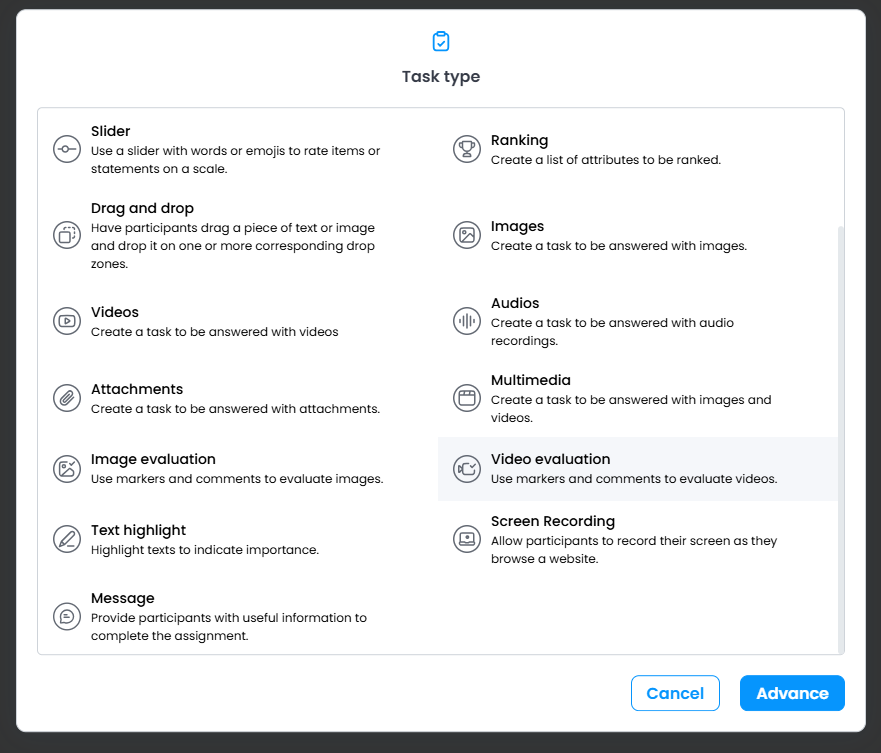
1. Choose “Video evaluation” from the list of tasks.
2. Use the text box to write the question statement, instructions and any other information you deem necessary. Adjust the text formatting using the icons (bold, italics, background colors, text colors, alignment, etc).
You can supplement your assignment statement with a video, photo or file. To do this, simply click on the “Add Media” button in the top right-hand corner of the text box and upload it.
3. You can also change the task (question) code using the rounded field next to the task list. The code of a task is important for identifying the question in the database and also for viewing the answers on the platform. OW Voices will always place the screen “T” followed by a natural number in ascending order for the task codes.
Remember that the answer option code cannot contain special characters, spaces or just the number 0.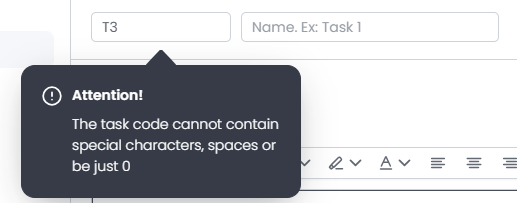
4. Choose the video to be evaluated. To upload, click on the highlighted area and choose the video from the documents on your computer.


6. Set a maximum and minimum number of reactions to be given by the participants. Remember that the participant can use the same label more than once.
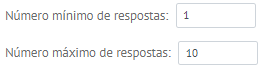
7. Choose whether commenting by reaction is mandatory or not.

8. Define the description in the section below.

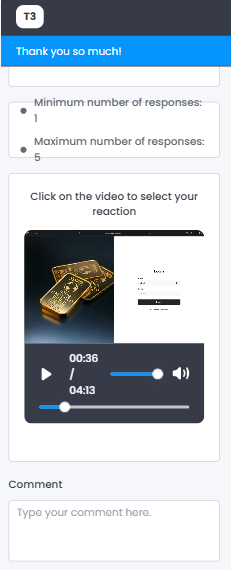
How will participants view this type of task?
This is an example:

On mobile devices:
Graphs and tables
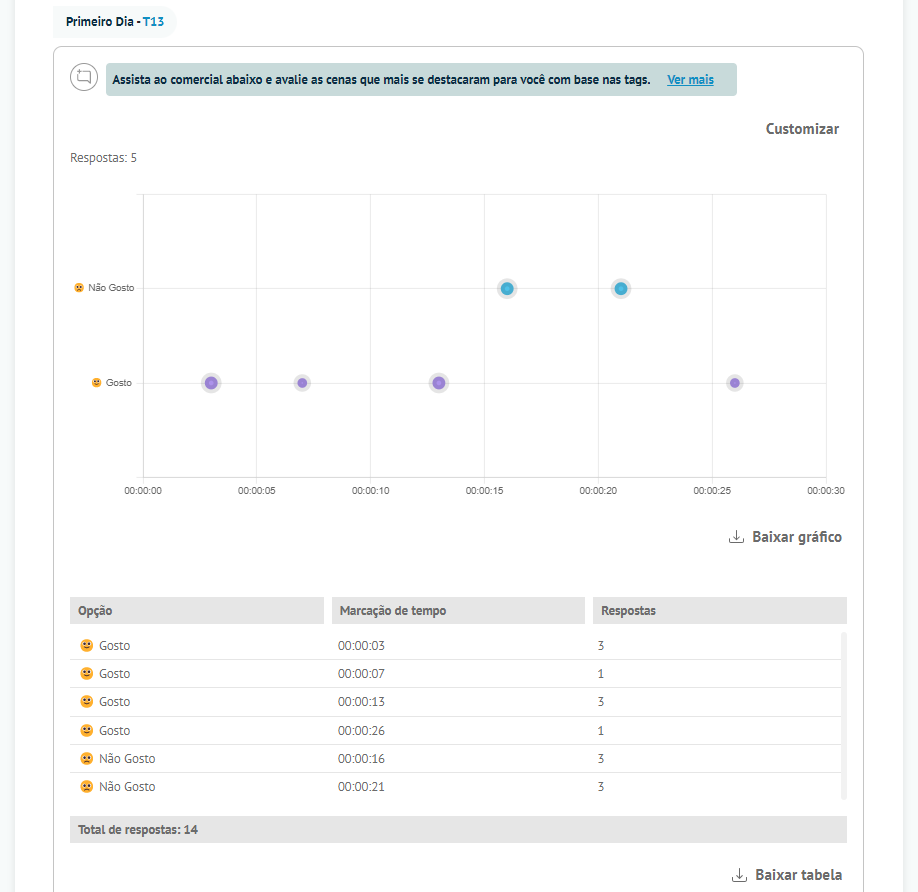
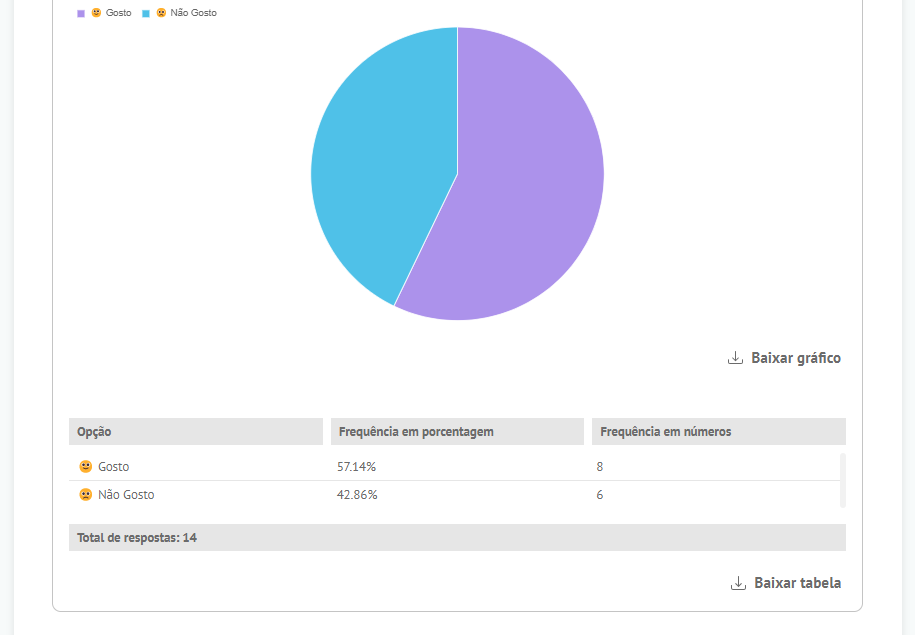
In the "Reports" menu, Administrators, Moderators, and Observers can view graphs for all task types. For Image Evaluation tasks, a bubble chart will be generated indicating the most frequently used reactions per second of the video, and a pie chart indicating the most frequently used reactions throughout the entire video. The bubble chart contains larger bubbles to indicate points in the video where the tag was used most frequently and smaller bubbles to indicate points in the video where the tag was used least frequently. The tables positioned below the graphs will display the frequency of the tags in absolute numbers and as a percentage.
How will I view this type of task in the database?
This type of task does not have quantitative accounting or visualization in the database. To generate data, you can download the response table located below the bubble and pie charts.
Was this article helpful?
That’s Great!
Thank you for your feedback
Sorry! We couldn't be helpful
Thank you for your feedback
Feedback sent
We appreciate your effort and will try to fix the article