Once the community is set up, you can invite participants. There are two ways to do it:
- Import in batches: you upload a spreadsheet and the platform emails an invitation to each participant.
- Registration links: you generate a link and send it directly to participants.
Create the segments before inviting participants. Learn more in Segmentation.
INDEX
- Import in batches
- Filling in the file
- Reviewing and sending invitations
- Registration links
- Managing links
Import in batches
This is the recommended way to invite many participants at once. Each participant receives an email invitation to register on the platform.
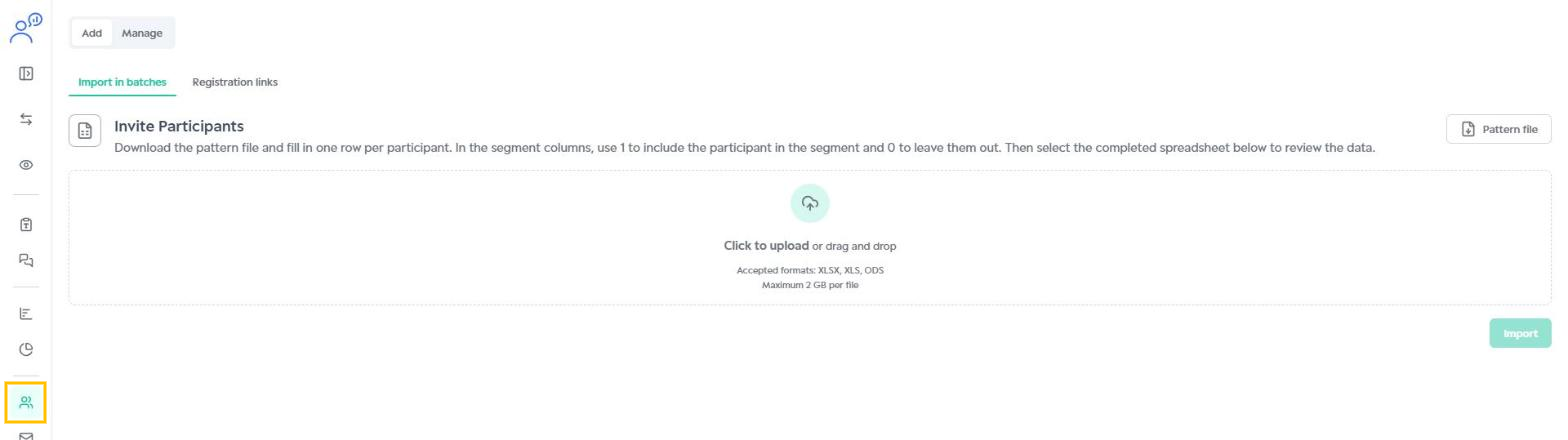
1. In the side menu, click Participants. Under Add, the Import in batches tab is already open.
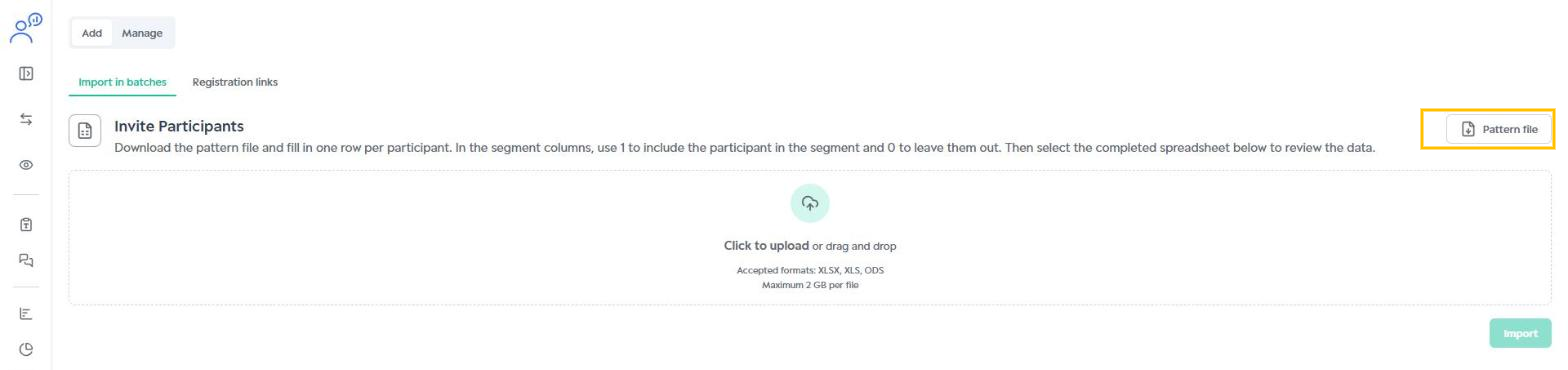
2. Click Pattern file to download the template spreadsheet.
Filling in the file
Fill in one row per participant:
- external_id: an identifier you define for each participant. Use unique IDs to keep things organized.
- email: the email that will receive the invitation, in the name@email.com format. Do not repeat emails.
- Segment columns: one column per community segment, named exactly as on the platform. Use 1 if the participant belongs to the segment and 0 if not.
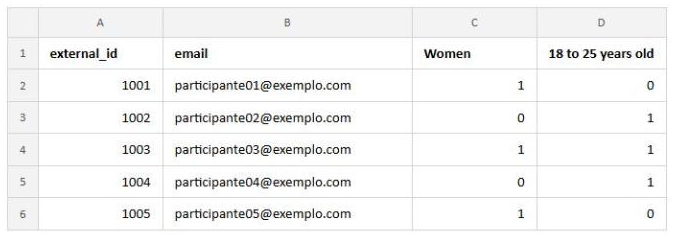
Fill in every segment cell with 1 or 0. A participant can belong to more than one segment.
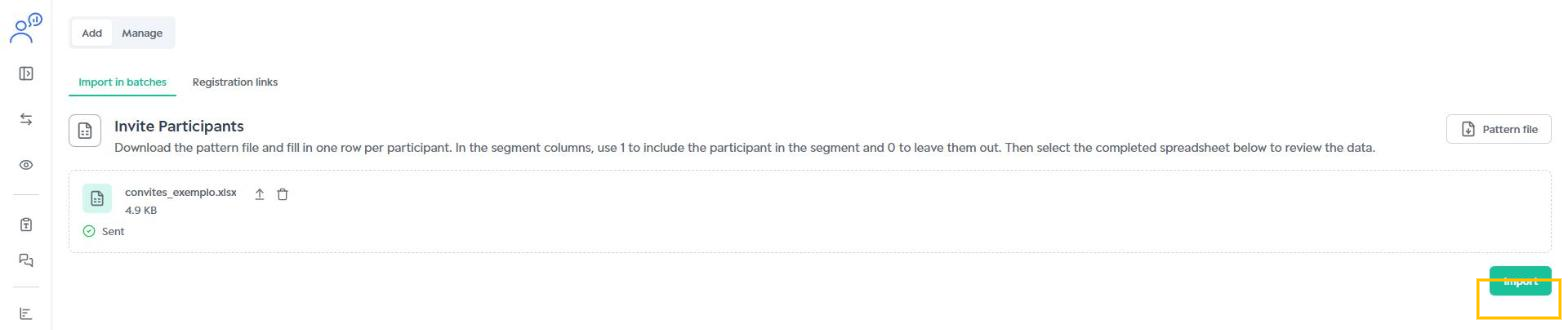
3. Click the upload area (or drag the file onto it) and then click Import.
Reviewing and sending invitations
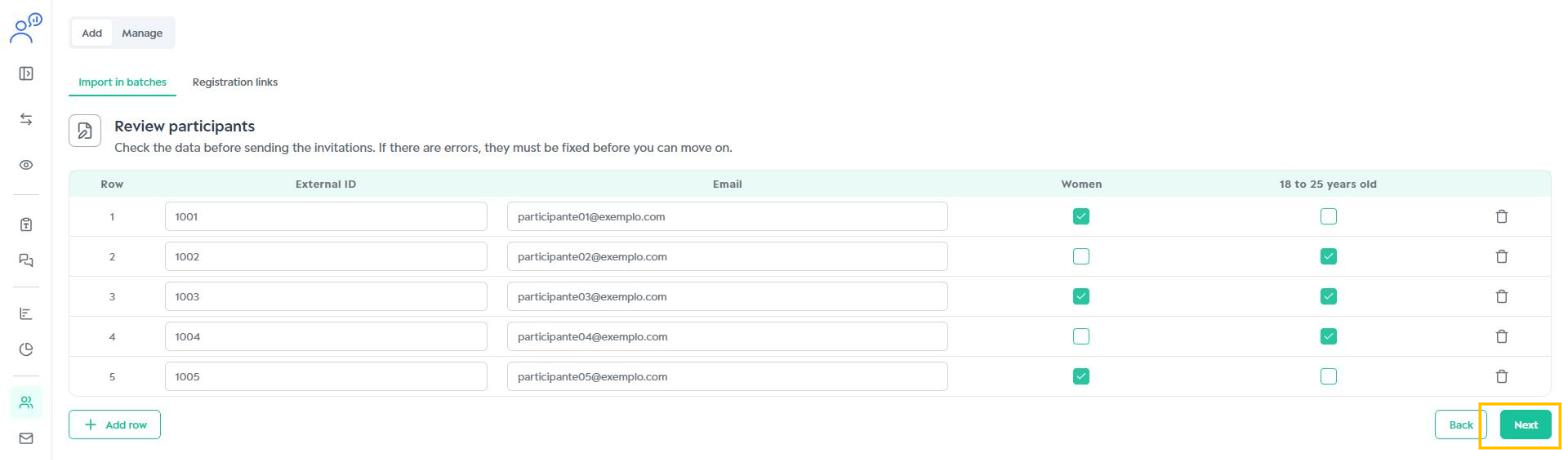
4. In the Review participants step, check the data. You can fix fields, check or uncheck segments, add people with Add row and remove rows with the trash icon. If there are errors, fix them to move on. Then click Next.
5. In the Send invitations step, review the email Subject and Body that participants will receive. Click Send to send the invitations.
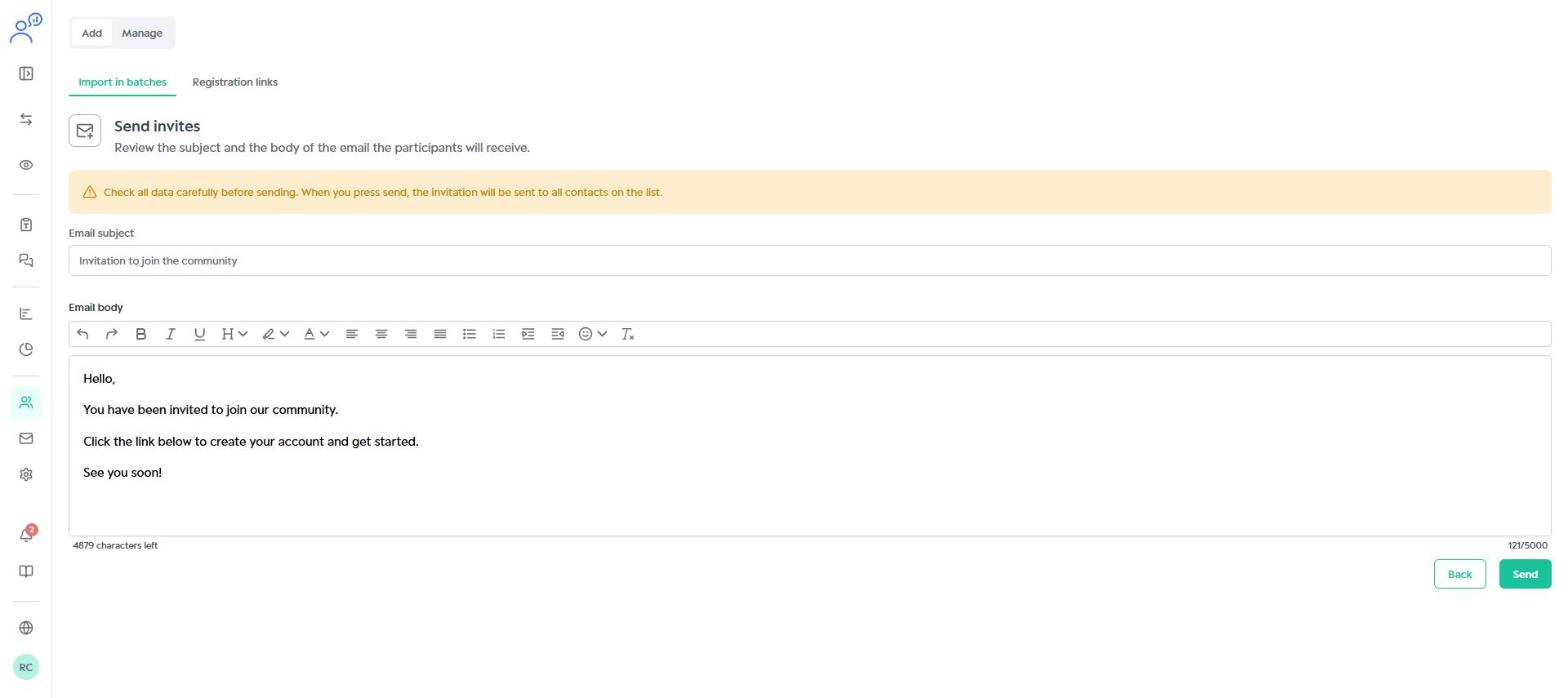
Review everything before clicking Send: the invitations go to every contact on the list.
Registration links
With a registration link, the platform does not send any email: you share the link with participants yourself. This option suits one-off or individual invitations.
1. In Participants > Add, open the Registration links tab and click Generate link.

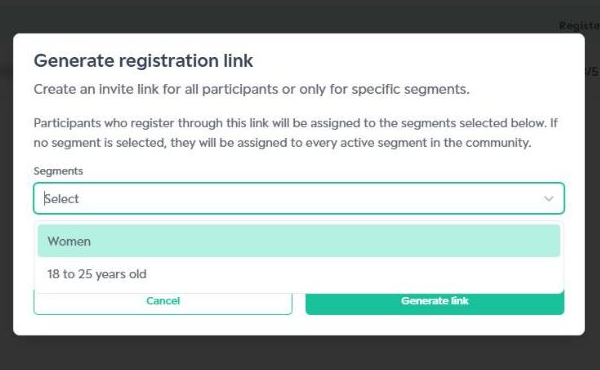
2. Under Segments, select the segments participants will be assigned to. If no segment is selected, they will be assigned to every active segment in the community.
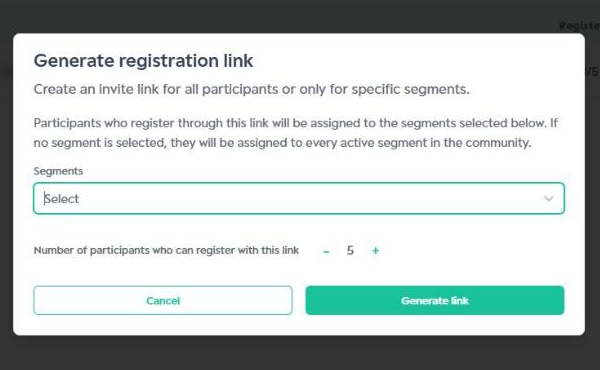
3. Set how many participants can register with the link and click Generate link.
4. The link appears in the list. Click the copy icon and send the link to participants.
Send the link through a private channel, directly to the participant, and avoid public groups. Only share the same link with participants of the same segments; for different segments, generate separate links.
Managing links
The list shows how many participants have registered with each link (Registered), the linked Segments and the Status. To disable or delete a link, click the three dots.
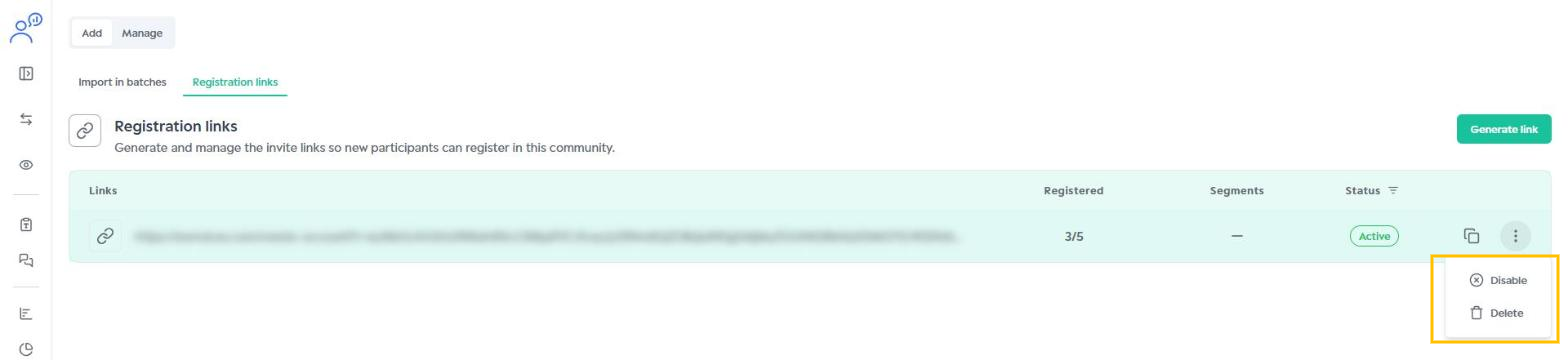
Deleting is permanent and the link cannot be recovered. Disable the link before deleting it.
After inviting participants, follow their registration in Manage participants.
Was this article helpful?
That’s Great!
Thank you for your feedback
Sorry! We couldn't be helpful
Thank you for your feedback
Feedback sent
We appreciate your effort and will try to fix the article