Text is a type of task in which questions must be answered with short or long text answers. Participants also have the option of adding image files to their answer
This type of task is used to allow participants to go into as much detail as they want and provide more in-depth qualitative data. CONTENTS
- Setting up
- How will participants view this type of task?
- Charts and Tables
- How will I visualize this type of task in the database?
Set up
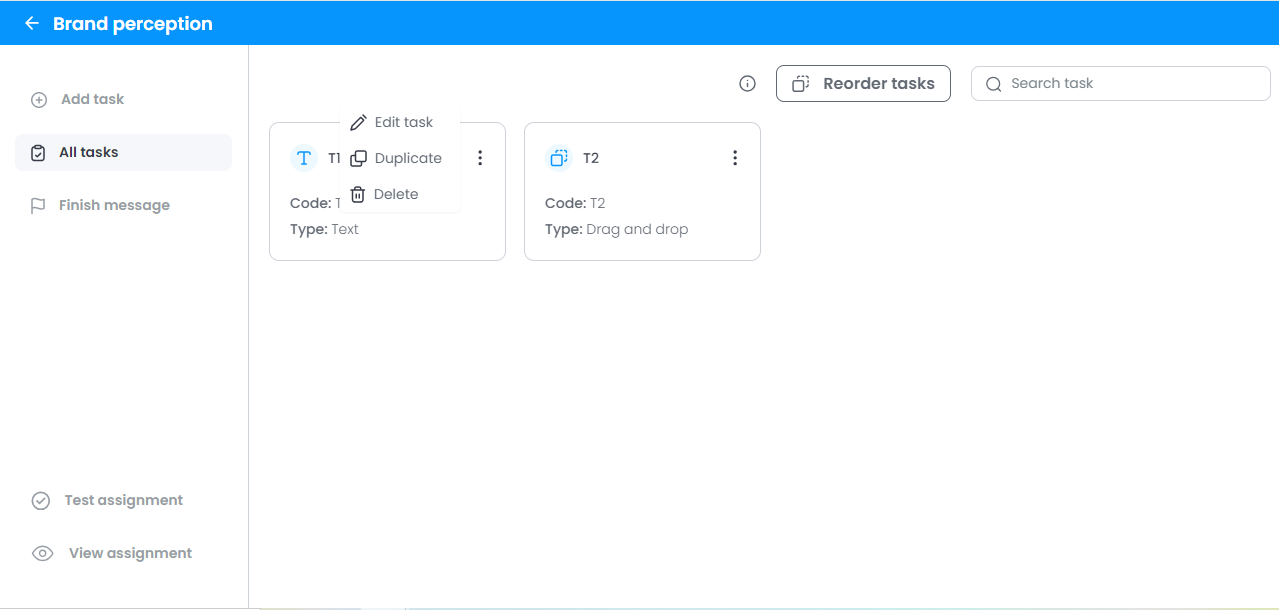
To create any task, you must have Administrator or Moderator access. Using one of these accesses you must go to the activity's gear menu and click on “Edit Tasks”. If you haven't yet created your first activity, you should do so before proceeding. Learn more about creating an activity here.
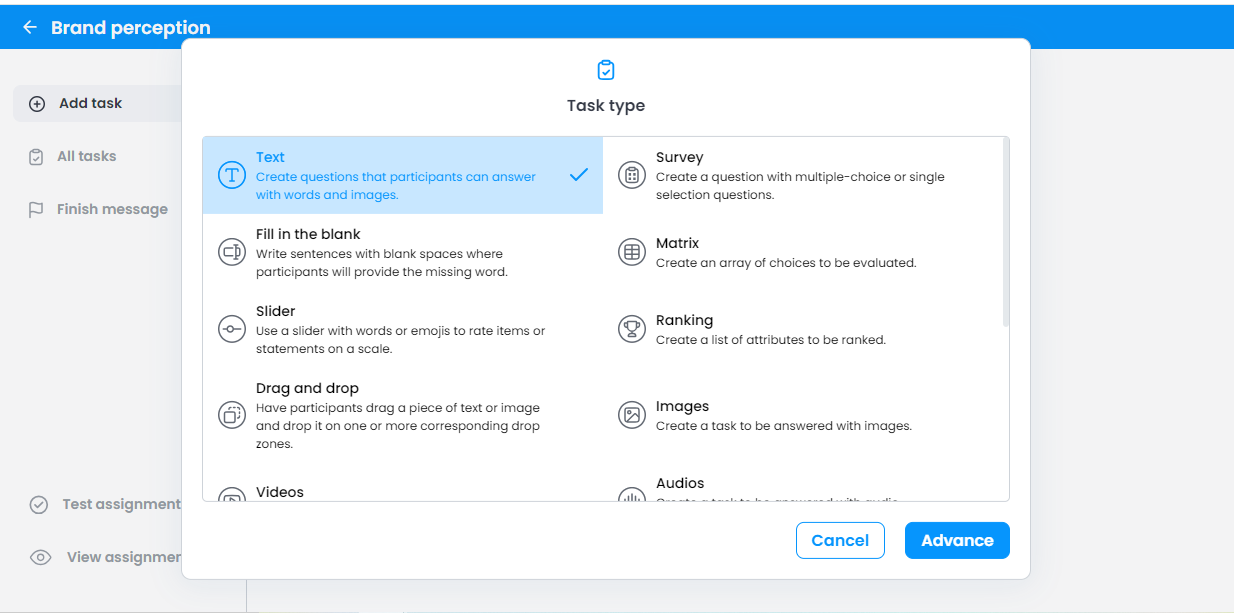
1. Choose “Text” from the list of tasks.
2. Use the text box to write the question statement, instructions and any other information you deem necessary. Adjust the text formatting using the icons (bold, italics, background colors, text colors, alignment, etc).
You can supplement your assignment statement with a video, photo or file. To do this, simply click on the “Add Media” button in the top right-hand corner of the text box and upload it.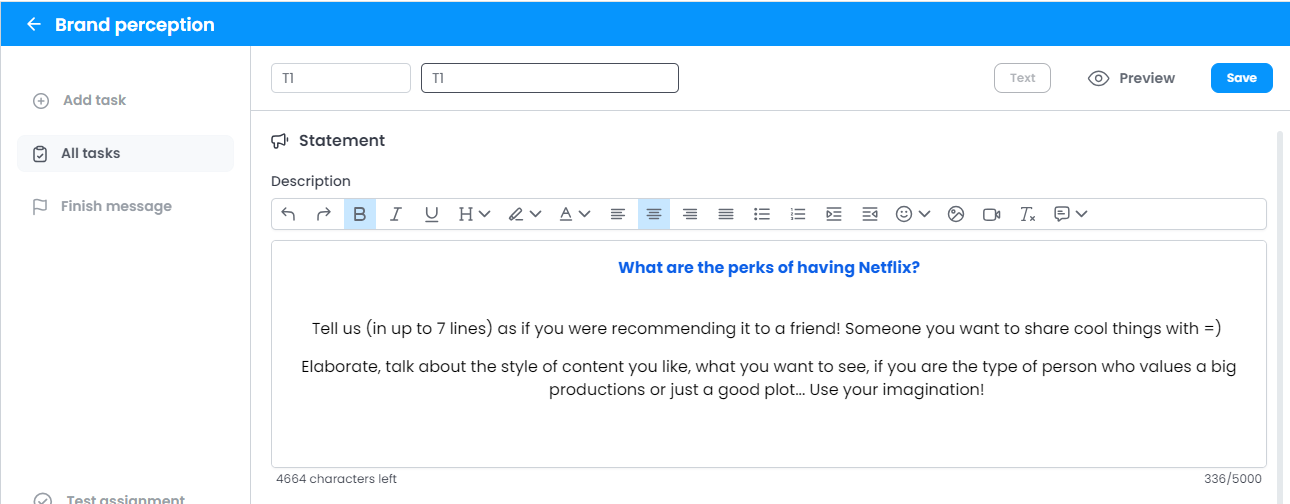
3. You can also change the task (question) code using the rounded field next to the task list. The code of a task is important for identifying the question in the database and also for viewing the answers on the platform. Ow Voices will always place the screen “T” followed by a natural number in ascending order for task codes.
Remember that the question code cannot contain special characters, spaces or just the number 0.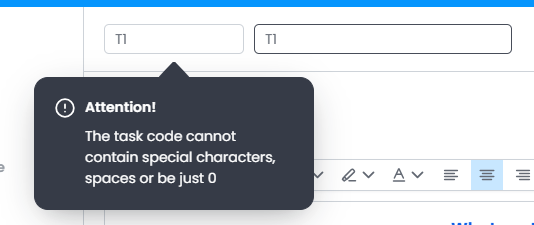
How will participants visualize this type of task?
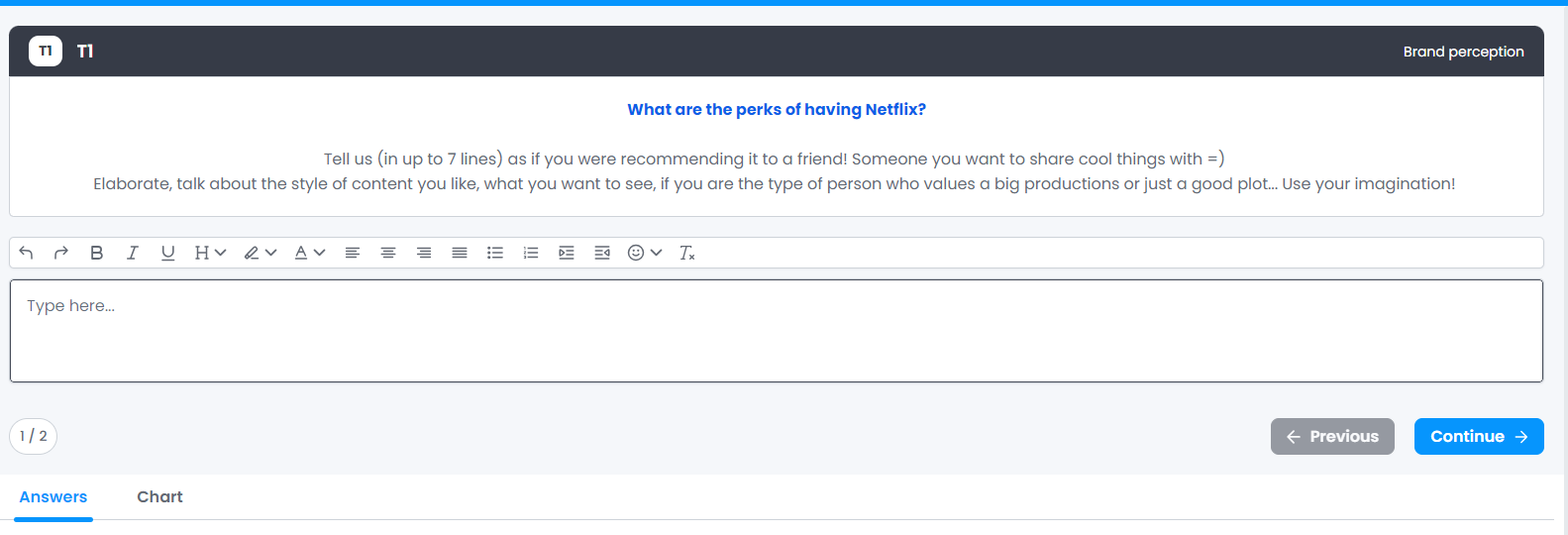
This is an example of how this type of task looks to the participants.
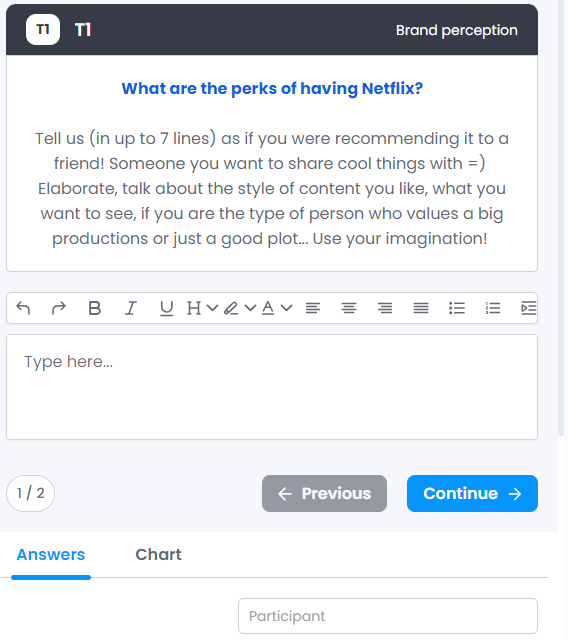
On mobile devices, we offer a different view to improve the user experience.
Graphs and Tables
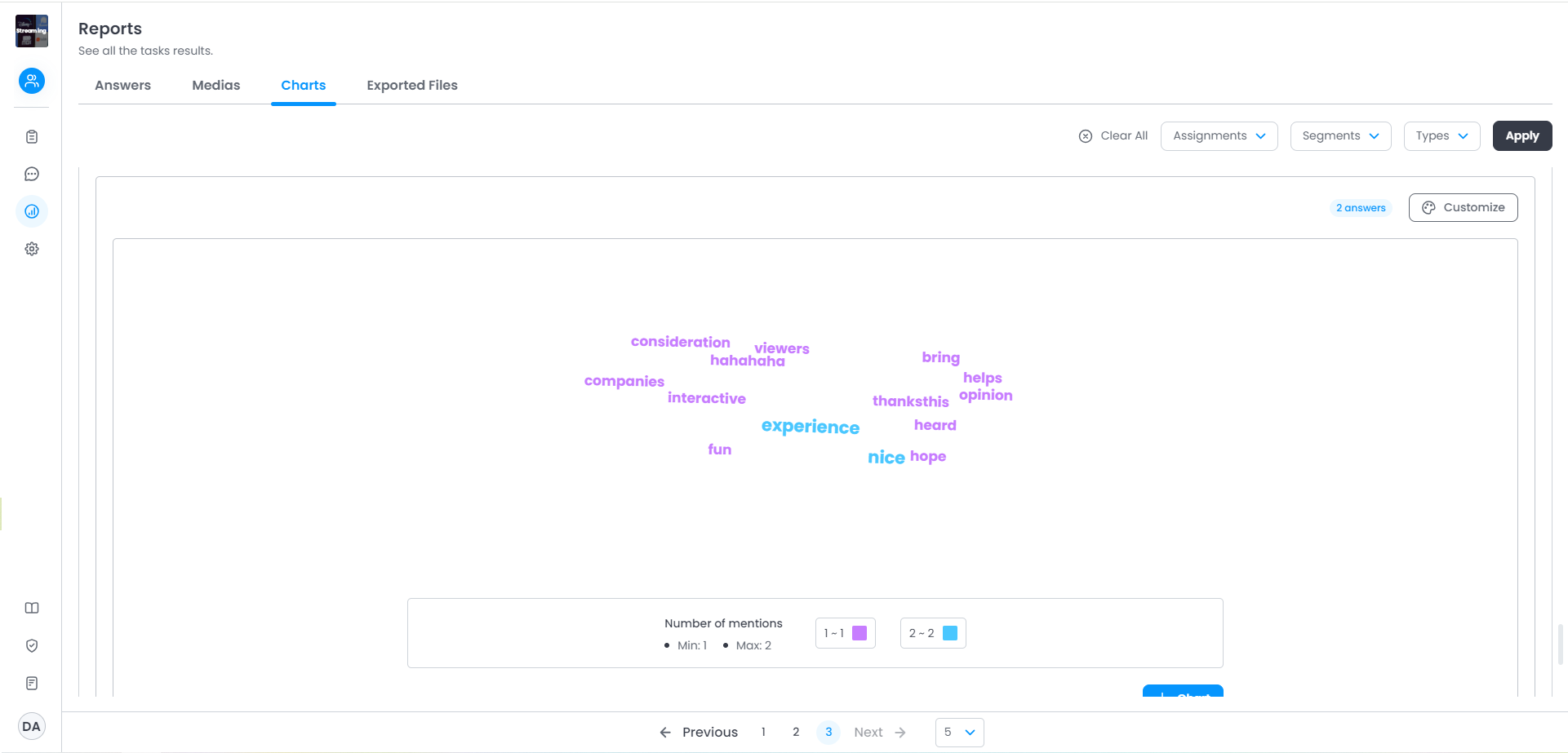
In the “Reports” menu, Administrators, Moderators and Observers can view graphs for all types of tasks. For tasks of the Text type, a word cloud will be generated, with the frequency in which the words appeared differentiated by color.
The table below the graph will display the frequency of words in absolute numbers and percentages.
How will I visualize this type of task in the database?
For open answers, the export will always display the texts written by each respondent in each row. The wording of the column will indicate the question asked of the respondent.
Remember when reading your database:
Empty cell → the question was not shown to the participant.
Cell with only the number 0 → the respondent did not select that answer option.
Was this article helpful?
That’s Great!
Thank you for your feedback
Sorry! We couldn't be helpful
Thank you for your feedback
Feedback sent
We appreciate your effort and will try to fix the article